
Documentation
Set up your Shopify checkout, one block at a time.
Step-by-step guides for all 35 Checkout Ninja blocks, plus visibility conditions, checkout rules, translations and fixes. Written for merchants, no code needed.
New here
Get your first block live
Choose a plan, build a block and place it in Shopify's checkout editor in about five minutes.
Something's wrong
A block isn't showing
Work through the causes in the order they usually turn out to be the answer.
Looking something up
Every visibility condition
All 31 conditions and their operators for showing or hiding a block.
How Checkout Ninja works
Every block goes live the same way.
- 1
Build a block
Pick a template or Start Fresh, then add block types like trust badges or an upsell.
- 2
Save and copy the Block ID
Saving gives the block an ID under Block Details.
- 3
Place it in checkout
In Shopify's checkout editor, add the Custom Block app block and paste the ID.
Popular guides
Block setup guides
What each block looks like in checkout, and how to set it up.
Advanced & Deluxe Deluxe
Trust & Security 7
Trust badges, payment icons and reviews.
-
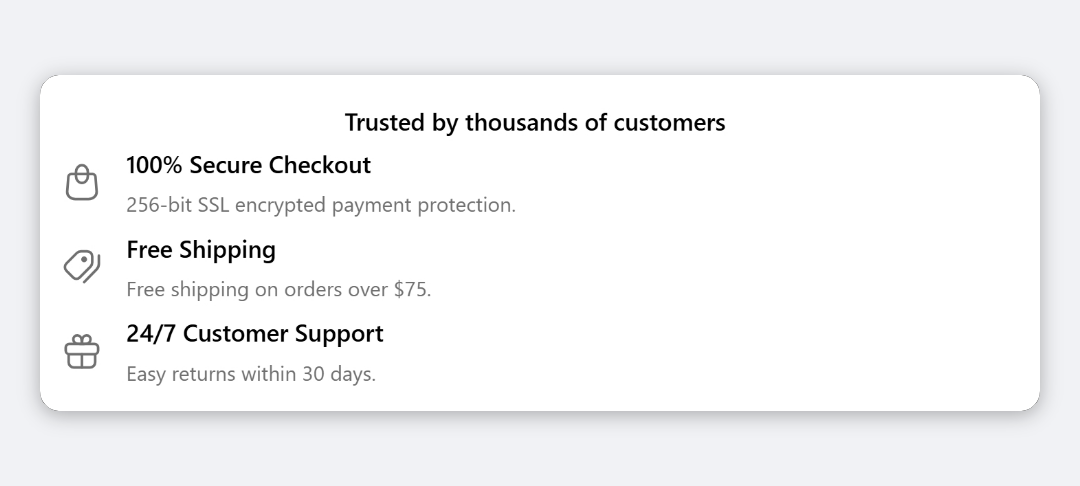 Trust Badge All plans
The Trust Badge block shows a title and a vertical list of badges in checkout, each with an icon, a title and a short description.
-
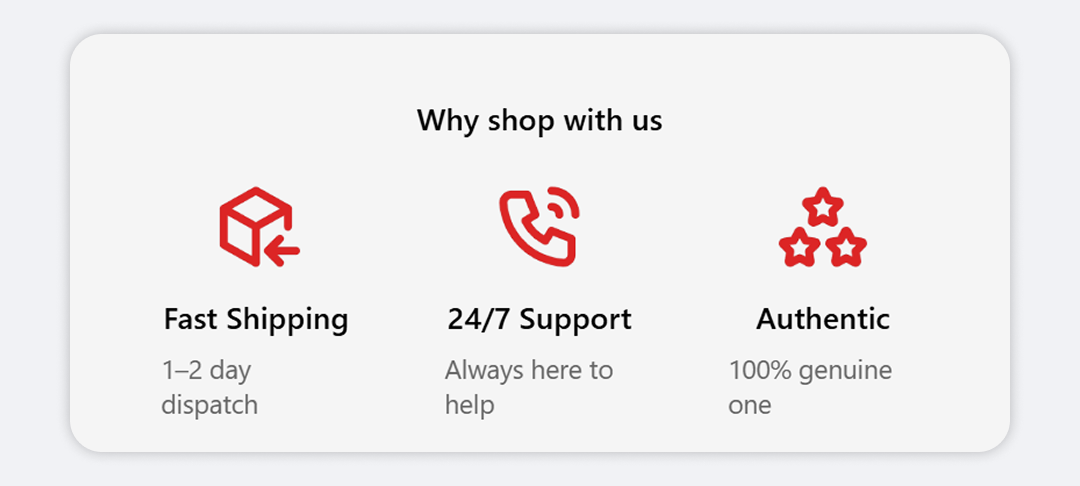 Trust Badges (Horizontal) All plans
The Trust Badges (Horizontal) block shows a title and a single row of badges, each with an icon above a short title and description.
-
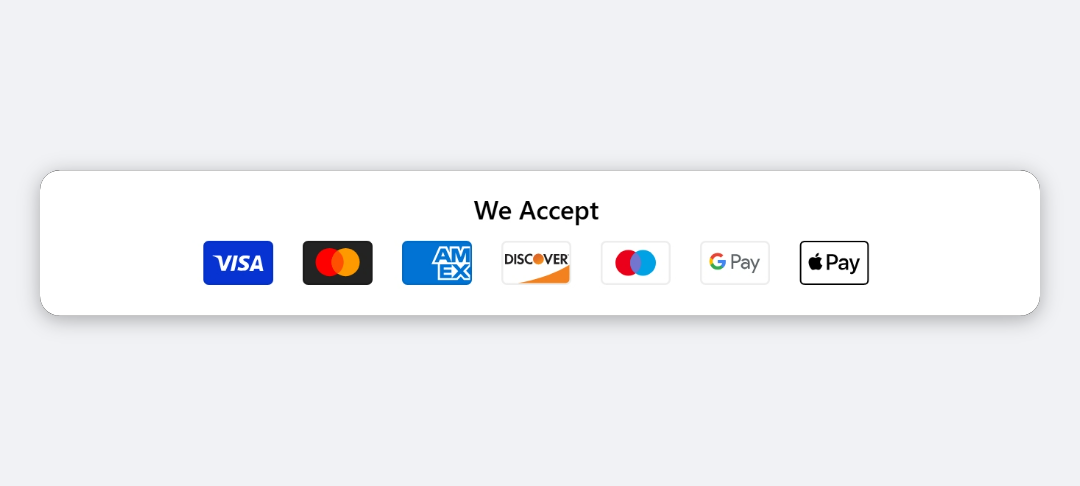 Payment Icon All plans
The Payment Icon block shows a row of payment method logos in checkout, under an optional title such as We Accept.
-
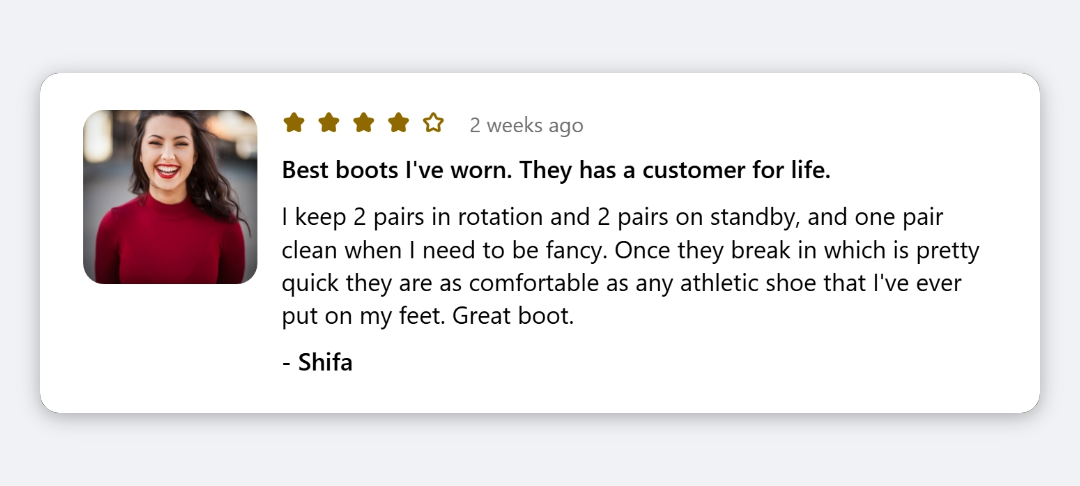 Testimonial All plans
The Testimonial block shows a single customer quote in checkout, with stars, a title, the review text, the author's name, a date and an optional photo.
-
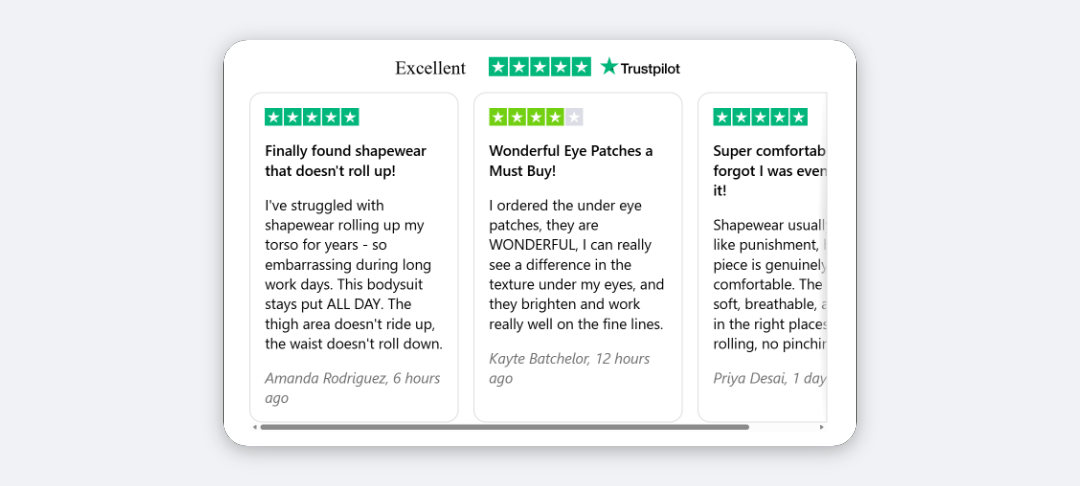 TrustPilot All plans
The TrustPilot block shows a title, an optional rating image and a scrolling row of review cards with Trustpilot stars.
-
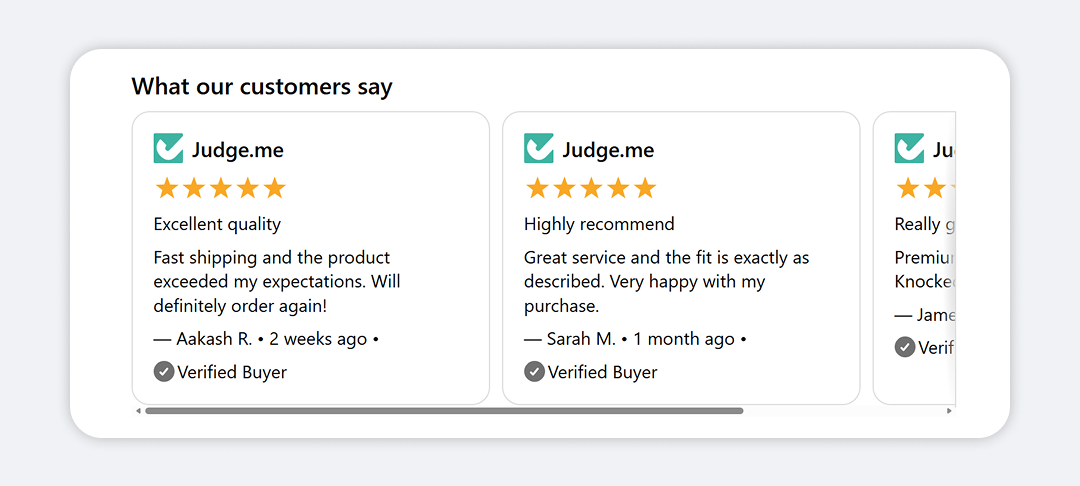 Reviews Gallery All plans
The Reviews Gallery block shows up to 12 reviews you enter by hand, in one of 13 layouts such as Stacked Cards, Two Column Grid, Swipe Cards or Flip-Through Cards.
-
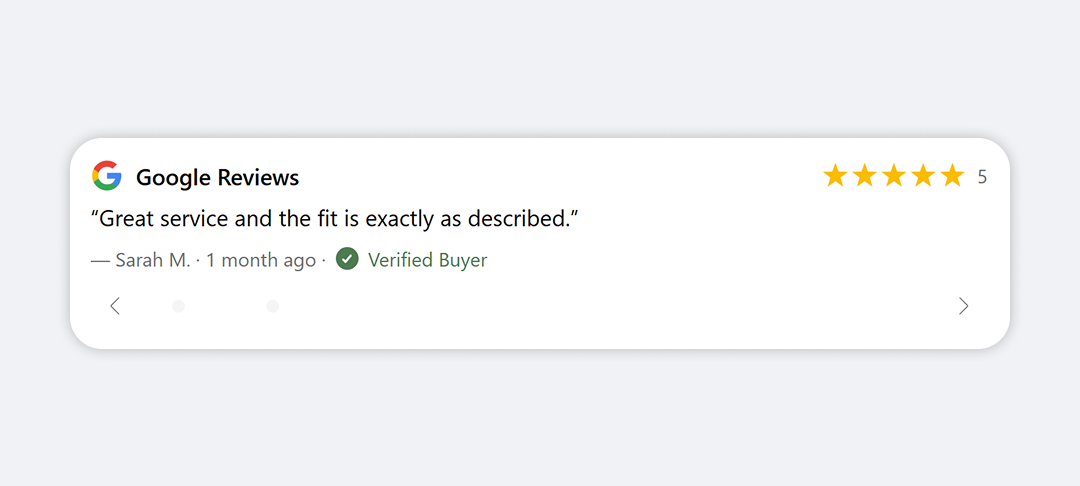 Review Card All plans
The Review Card block shows one review at a time in a card headed by a platform logo, such as Google or Trustpilot, with stars and arrows to move between reviews.
Conversion Boosters 9
Upsells, coupons, shipping protection and progress bars.
-
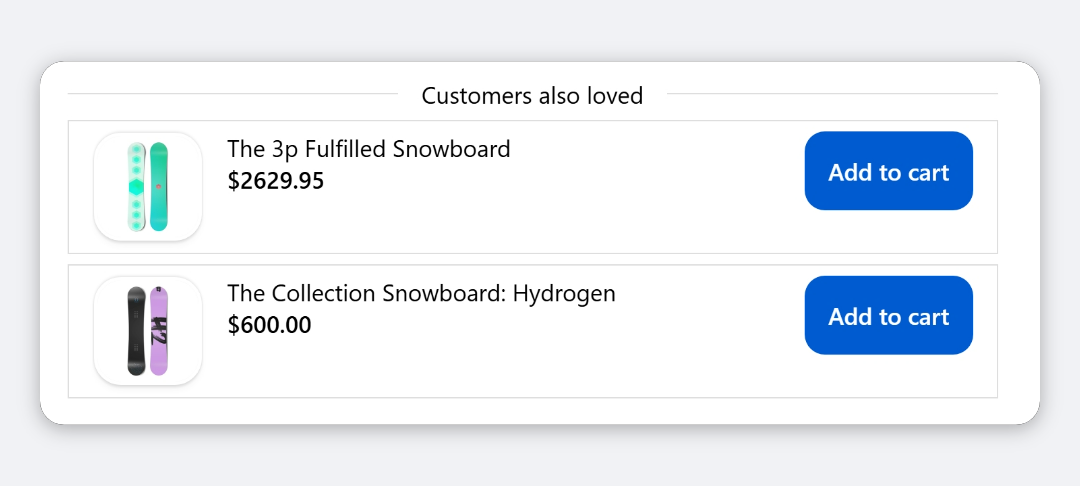 Upsell Deluxe
The Upsell block lists product recommendations in checkout, each with an add-to-cart button.
-
 Featured Upsell Deluxe
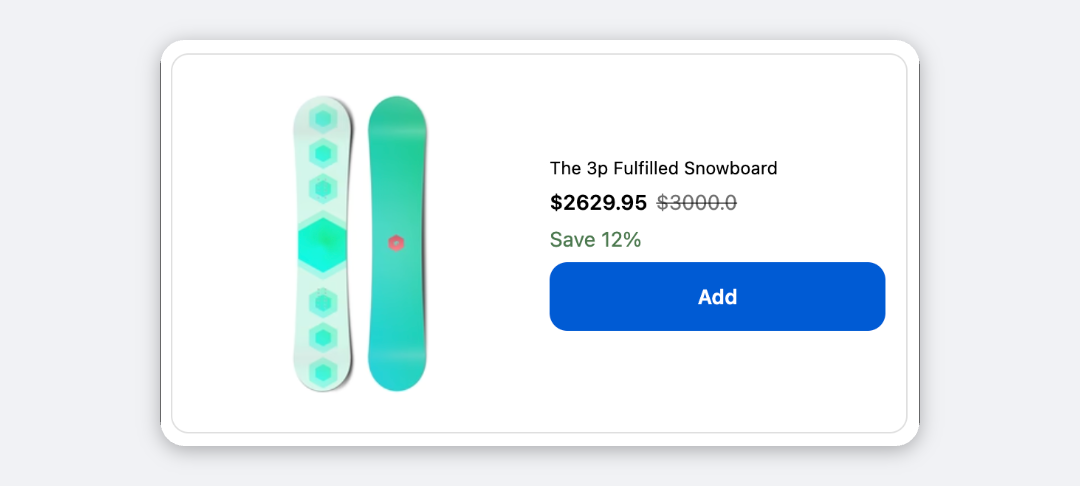
The Featured Upsell block shows one product in checkout with a large image, its price and a full-width Add button.
-
 Promo Banner Upsell Deluxe
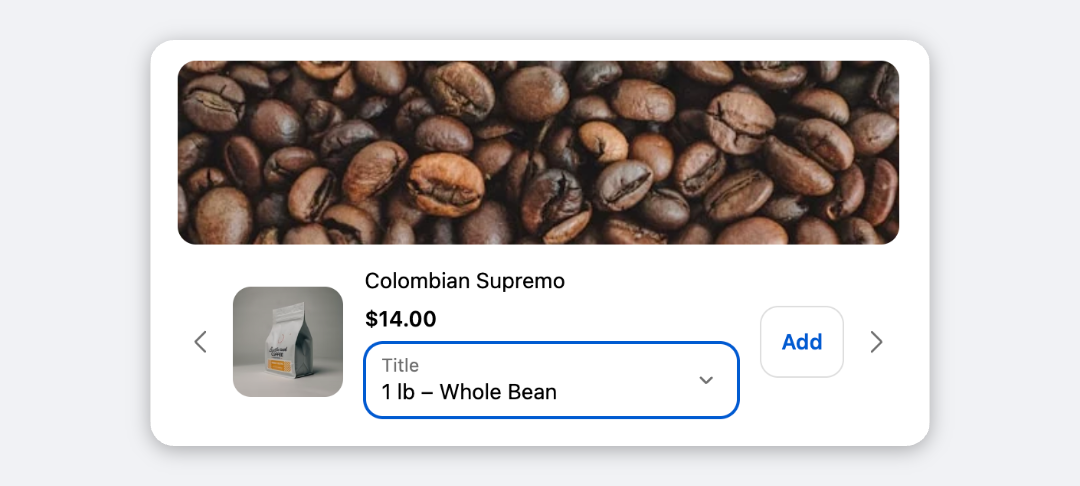
The Promo Banner Upsell block shows a campaign image with a heading and a paged list of products beneath it, each with an Add button.
-
 Quick Add Upsell Deluxe
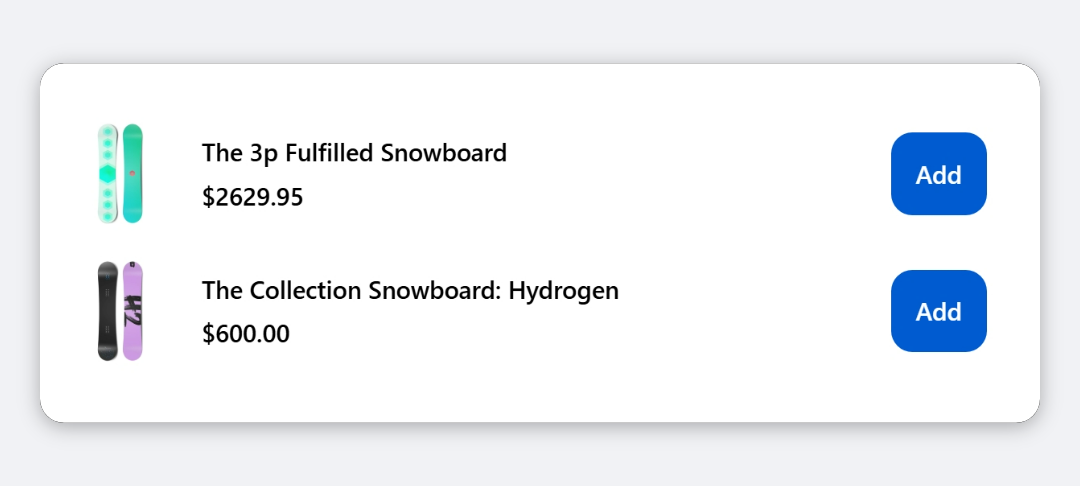
The Quick Add Upsell block shows a compact list of add-on products in checkout, one row per product with a variant selector and an Add button, and pages through longer lists.
-
 Coupon List All plans
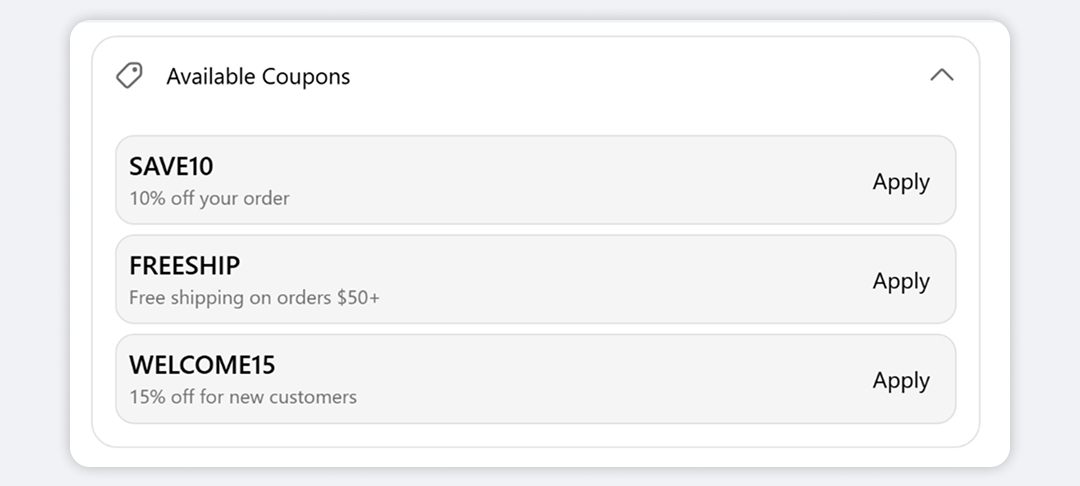
The Coupon List block shows a collapsible list of discount codes in checkout, each with an Apply button.
-
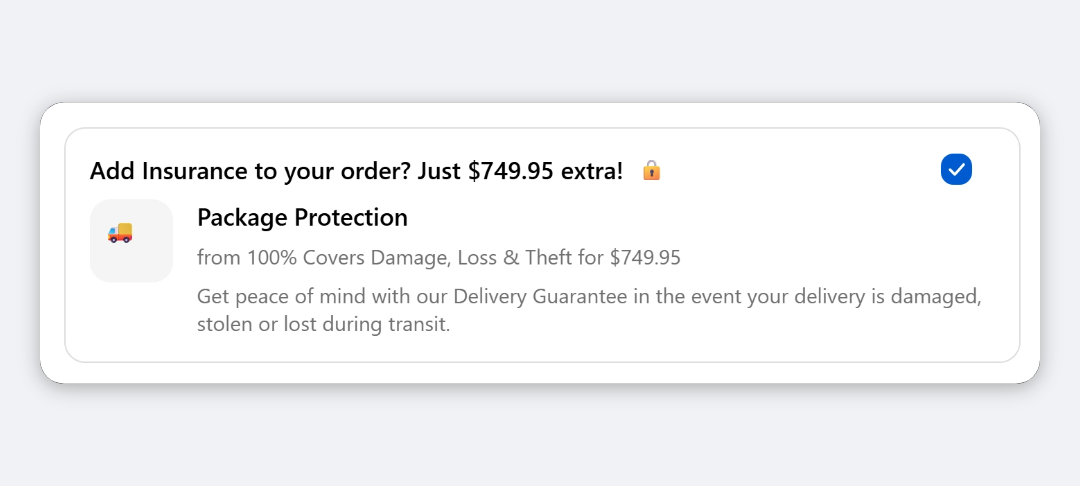 Shipping Protection Deluxe
The Shipping Protection block adds an opt-in checkbox to checkout that puts a protection product of your choice into the cart.
-
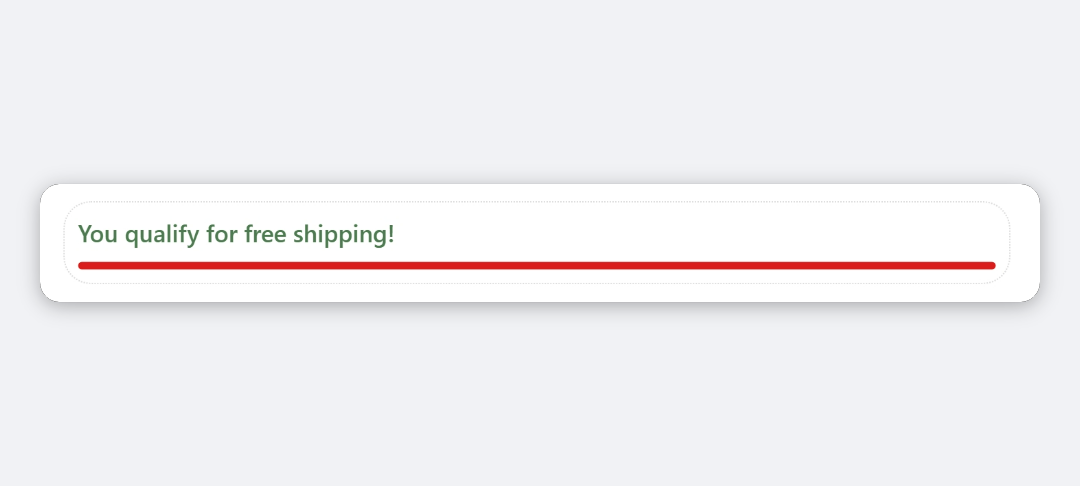 Shipping Progress Bar All plans
The Shipping Progress Bar block shows a message and a bar that fills as the cart subtotal approaches your free shipping threshold.
-
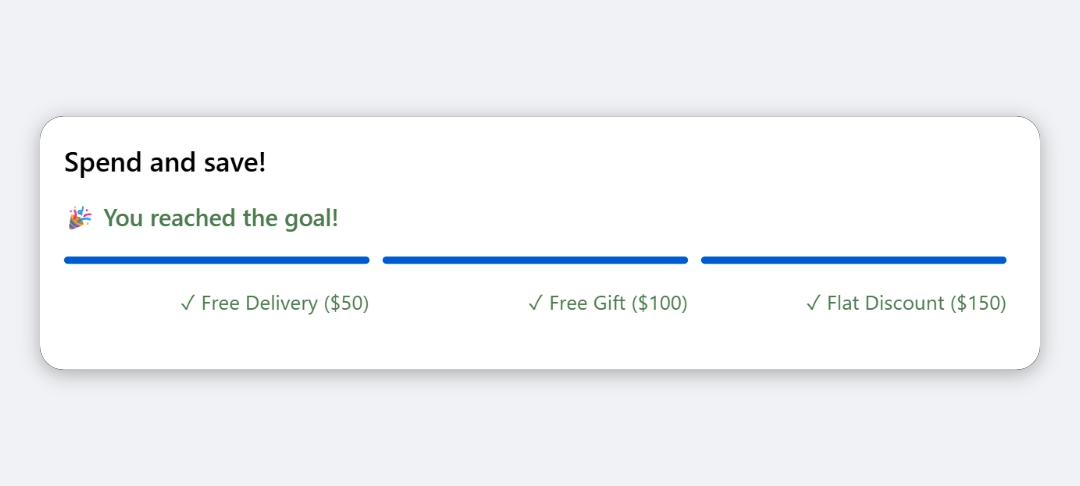 Progress Bar All plans
The Progress Bar block shows a segmented bar that fills as the buyer moves toward your milestones, such as $50 for free shipping and $100 for a gift.
-
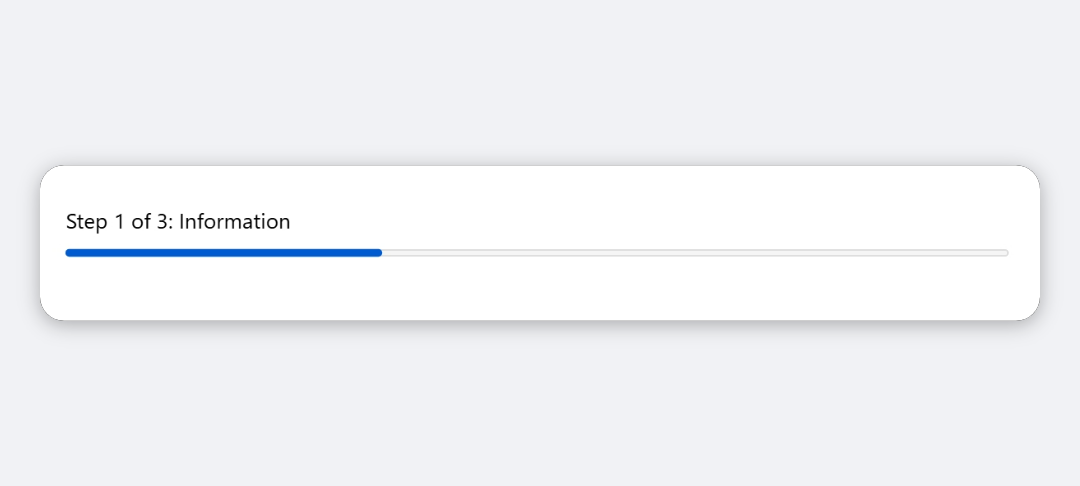 Step Indicator All plans
The Step Indicator block shows the buyer's current checkout step, for example Step 2 of 3: Shipping, with a progress bar.
Custom Fields 10
Collect information from buyers at checkout.
-
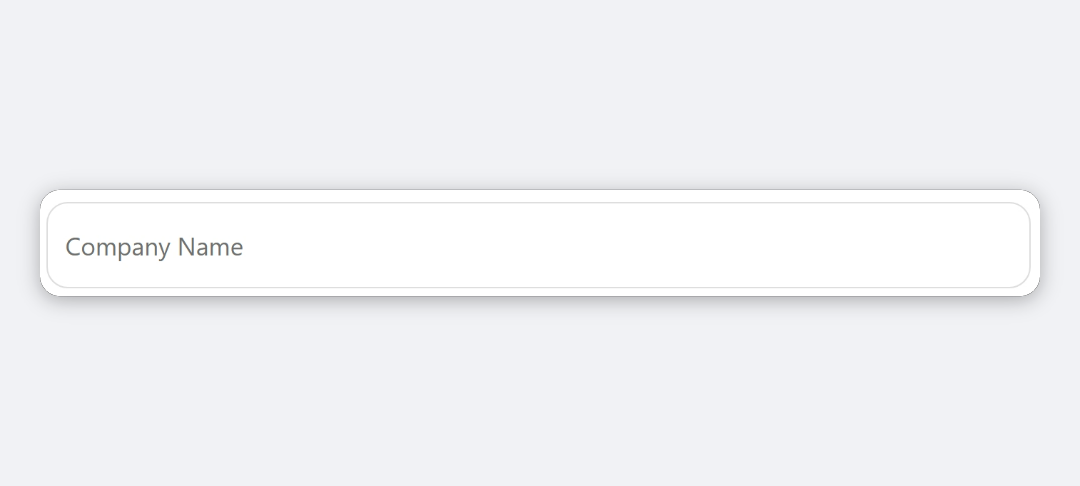 Text Input All plans
The Text Input block adds a single-line text field to checkout and saves what the buyer types to the order.
-
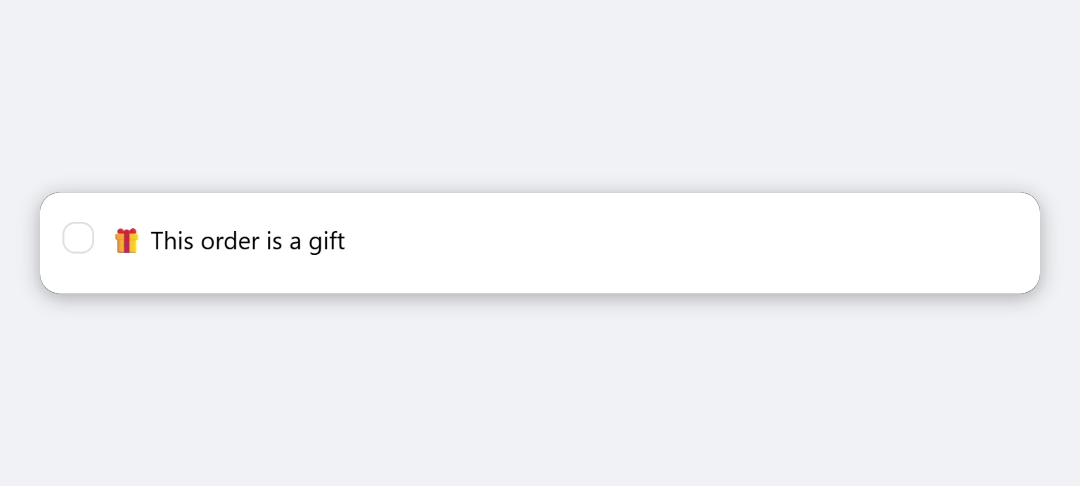 Checkbox All plans
The Checkbox block shows a single checkbox with your label in checkout.
-
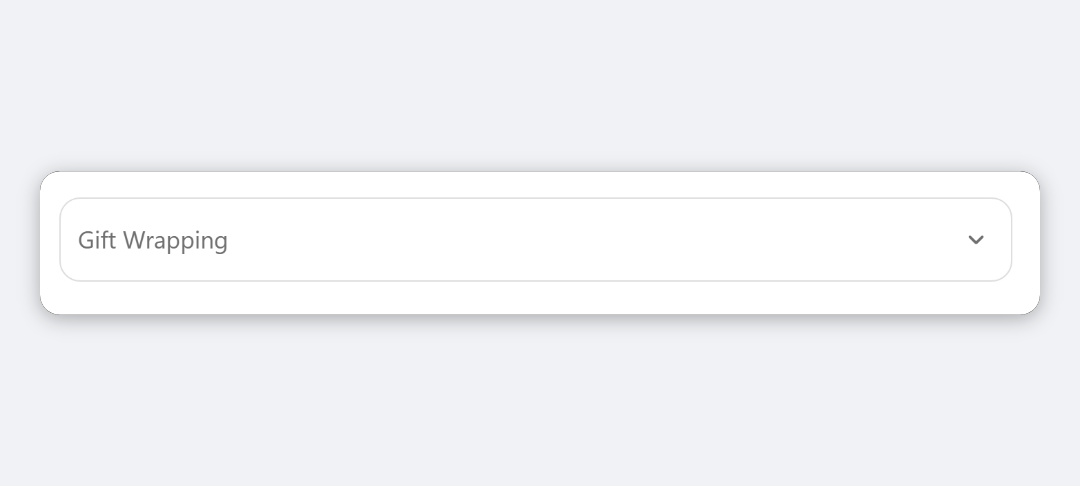 Dropdown All plans
The Dropdown block adds a select list to checkout and saves the chosen option's Value to the order.
-
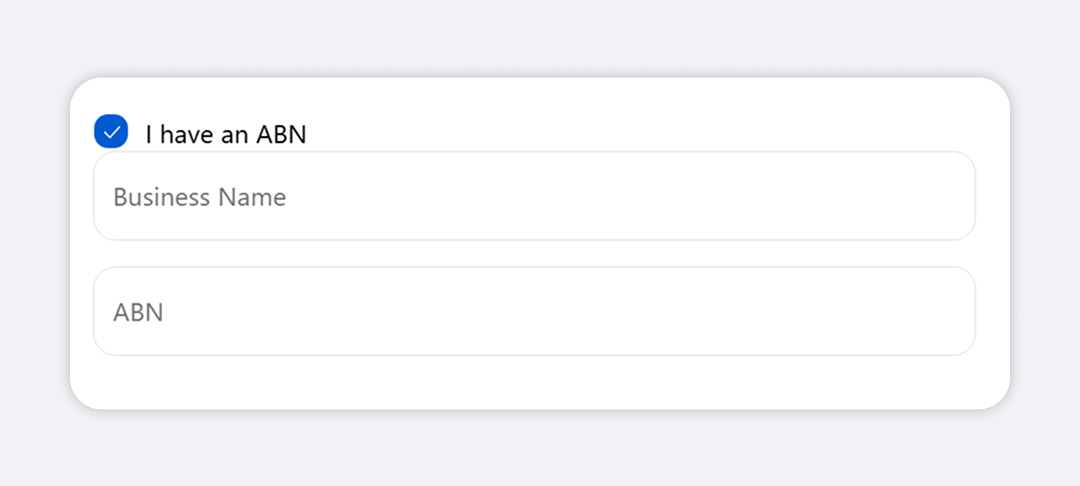 Conditional Checkbox Deluxe
The Conditional Checkbox block shows a checkbox that reveals extra fields when the buyer ticks it.
-
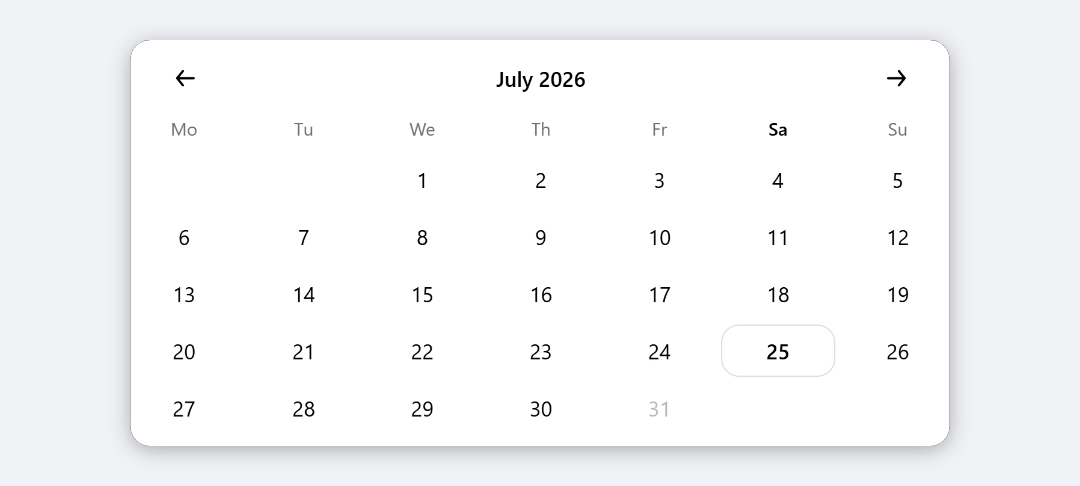 Date Picker All plans
The Date Picker block adds a calendar to checkout and saves the date the buyer picks to the order in YYYY-MM-DD format.
-
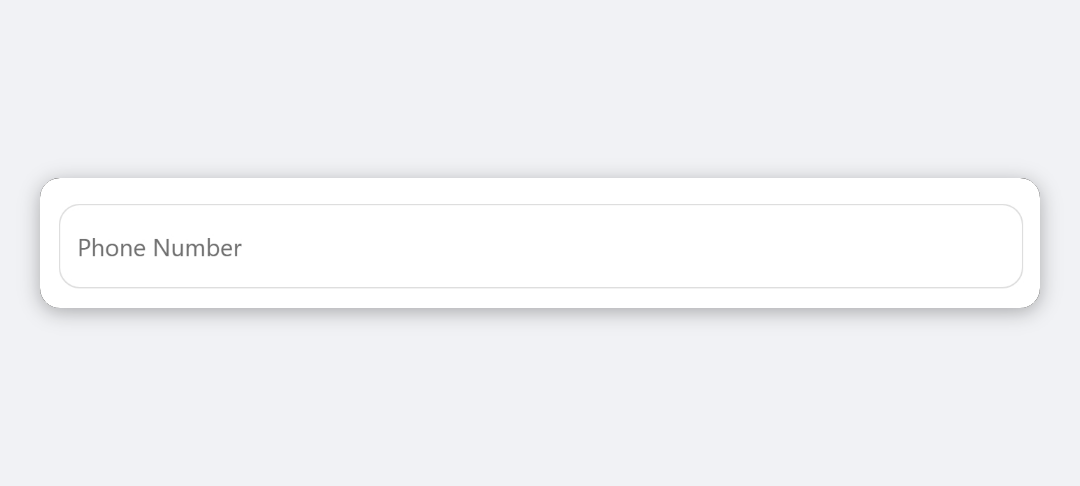 Phone Input All plans
The Phone Input block adds a phone number field to checkout and saves the number to the order.
-
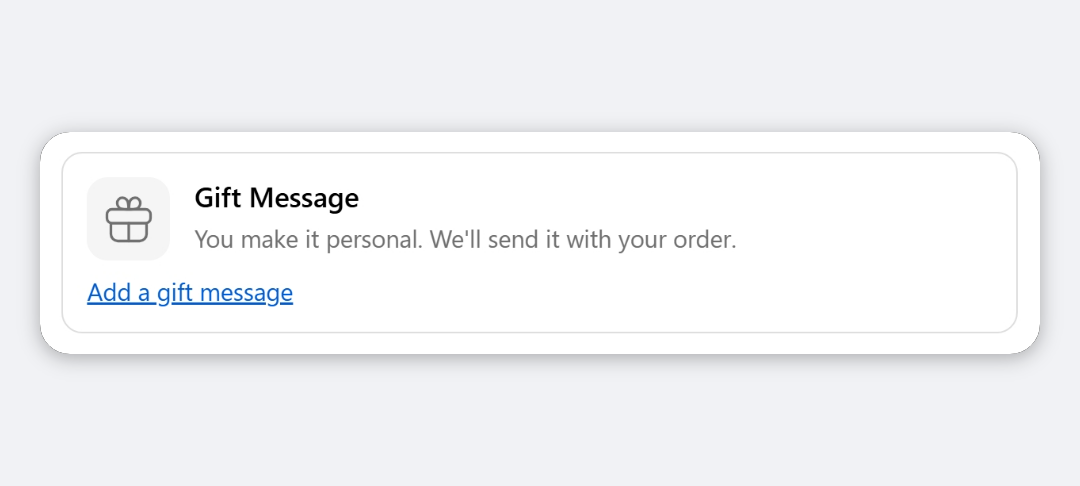 Gift Message All plans
The Gift Message block adds an "Add a gift message" link to checkout that opens a message box.
-
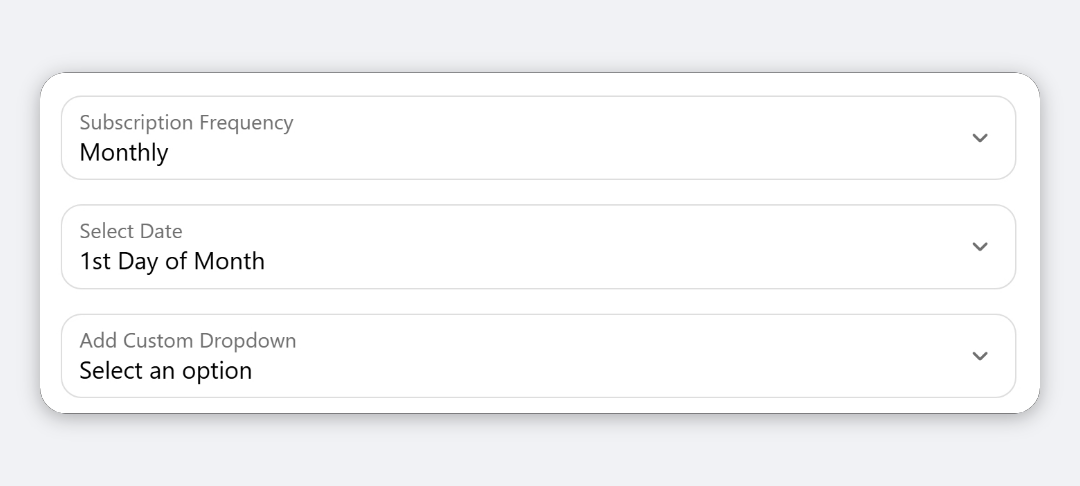 Dependency Dropdown All plans
The Dependency Dropdown block adds linked dropdowns to checkout: each choice filters the options in the next one.
-
 Save a checkout field to an order metafield All plans
Every Checkout Ninja input block has a Where to store the value setting: Attribute or Metafield.
-
 Disable dates in the checkout date picker All plans
Open your Date Picker block and add rules under Disabled Date rules.
Layout & Content 11
Headings, banners, images and content cards.
-
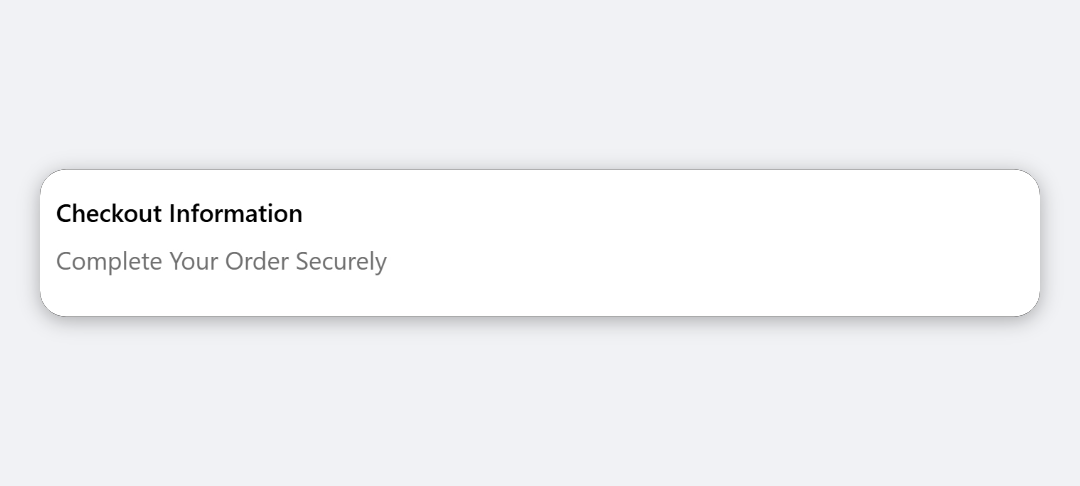 Heading All plans
The Heading block shows a heading line with an optional line of muted text under it.
-
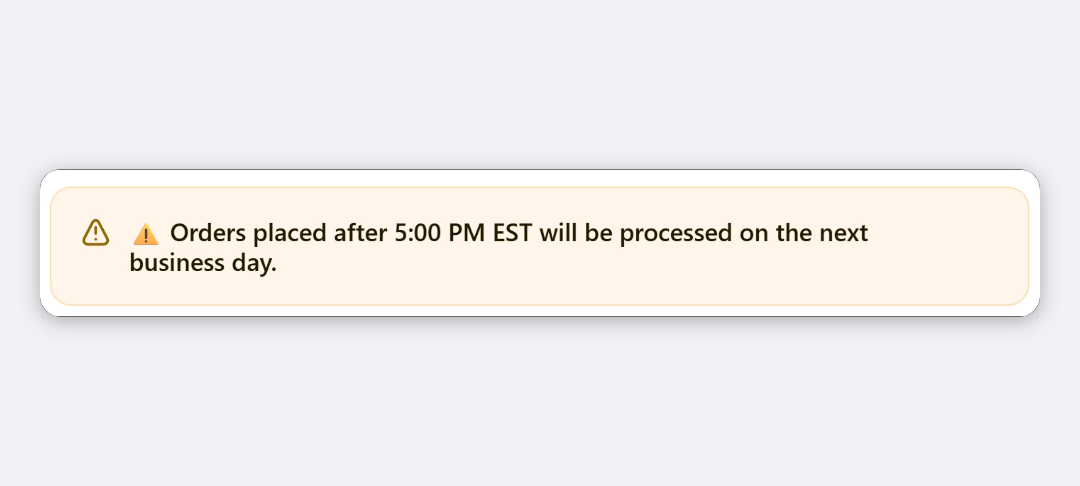 Message All plans
The Message block shows a one-message status banner in checkout, coloured by type.
-
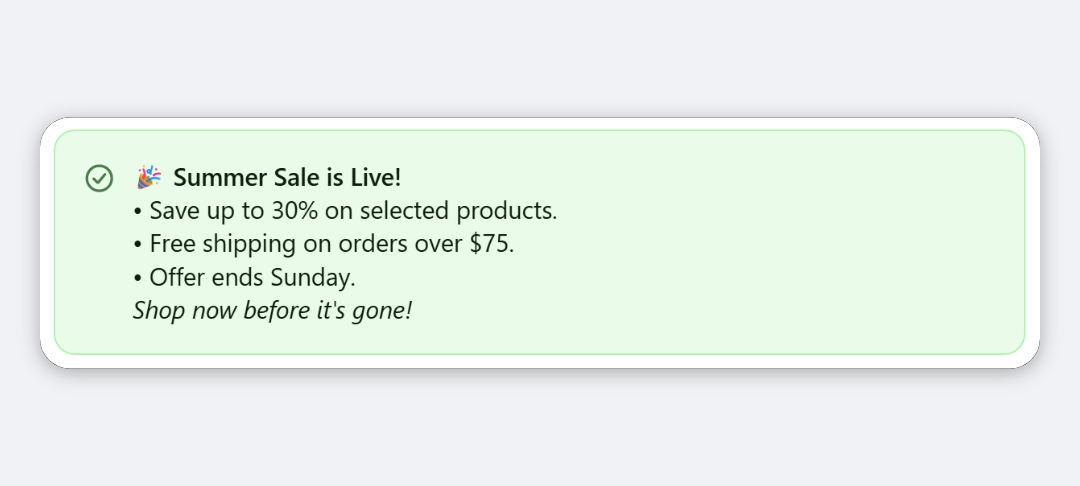 Rich Text Banner All plans
The Rich Text Banner block shows formatted text, with headings, lists, bold, italic and links, inside a status banner or a plain card.
-
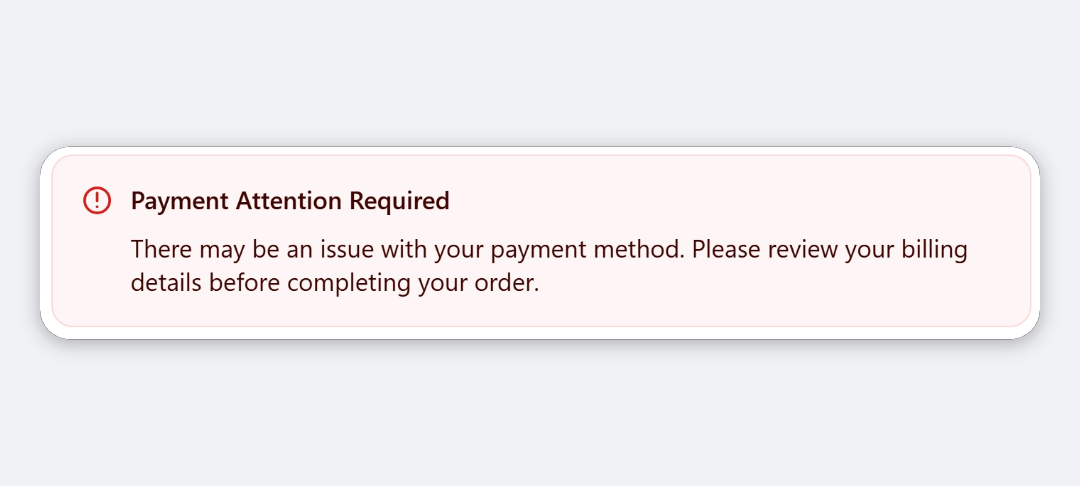 Notice Banner All plans
The Notice Banner block shows a coloured status banner with a heading, a description and up to two link buttons.
-
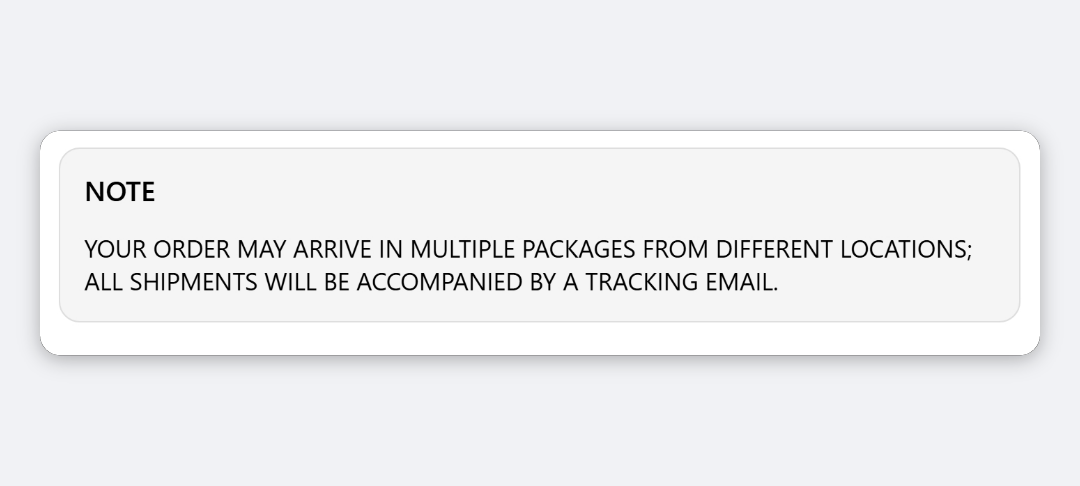 Card All plans
The Card Block shows a title and a short description inside a bordered card.
-
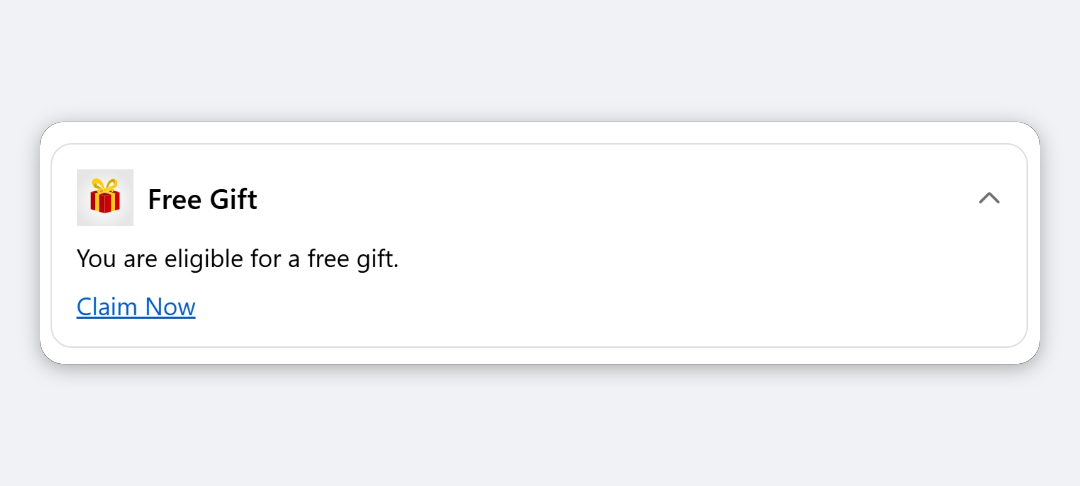 Collapsible Card All plans
The Collapsible Card block shows a bordered card with an optional logo and a heading that buyers click to reveal a description and link.
-
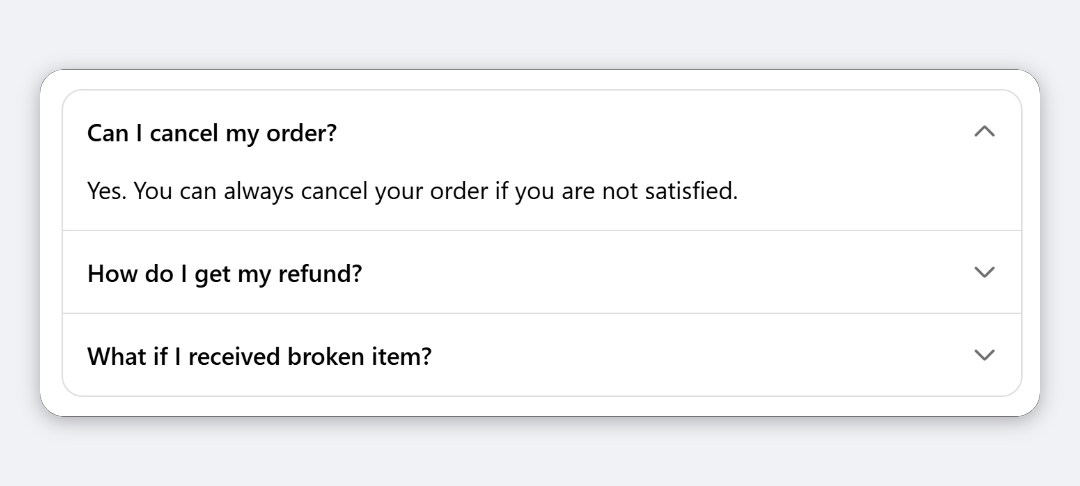 Accordion All plans
The Accordion block shows up to five panels, each with a title buyers click to reveal its text.
-
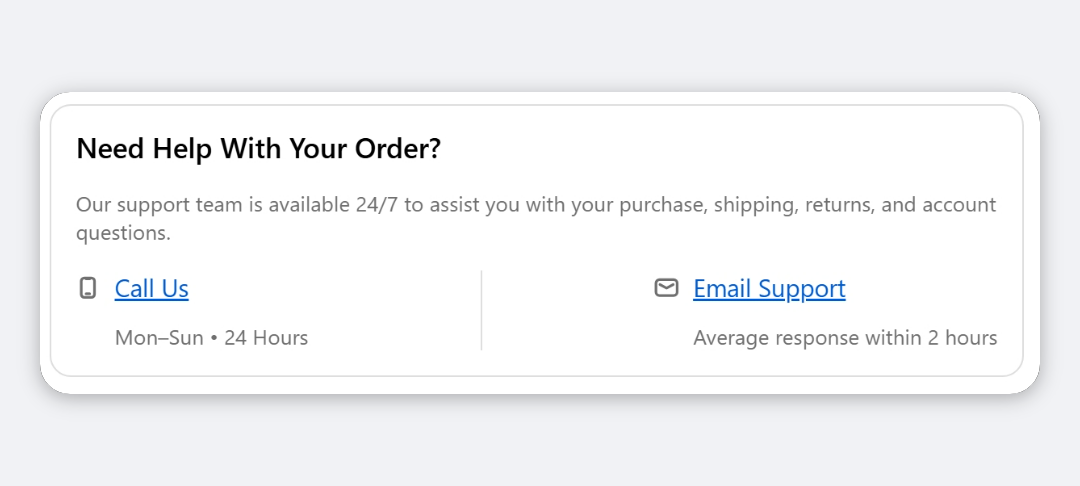 Info List All plans
The Info List block shows an optional heading and description, then rows of short information, each with an icon, primary text, sub-text and an optional email, phone or URL link.
-
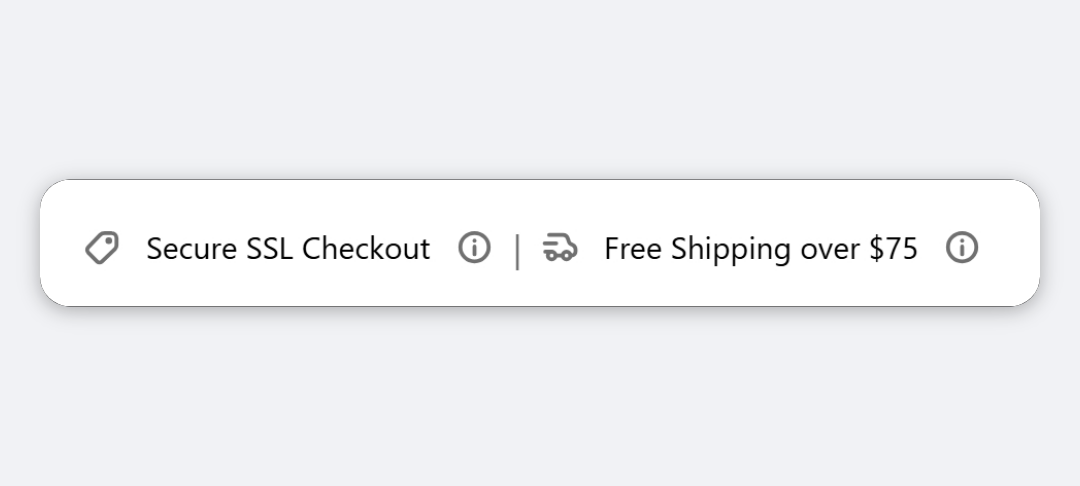 Tooltip Bar All plans
The Tooltip Bar block shows short items, such as Easy Returns or Free Delivery, in one compact line.
-
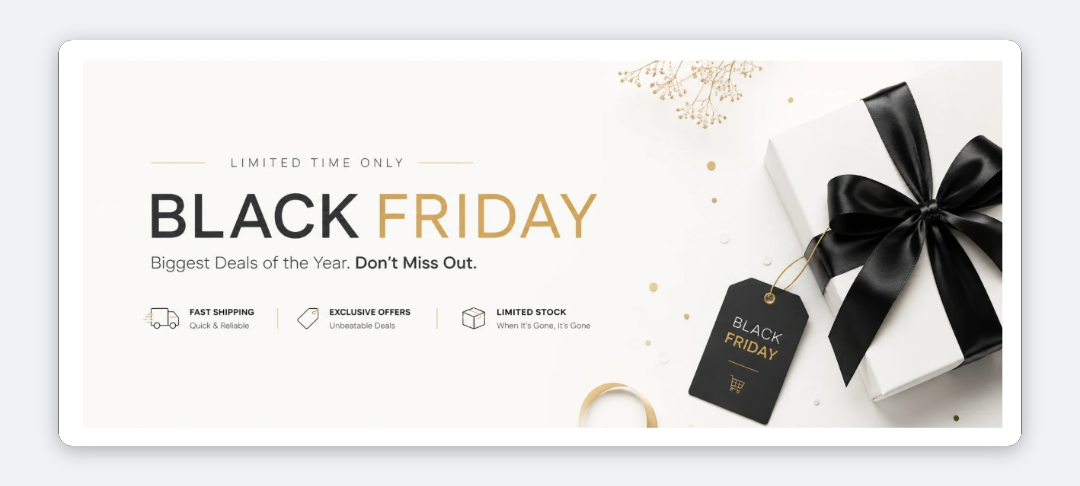 Image All plans
The Image block shows one image from your Shopify Files in checkout.
-
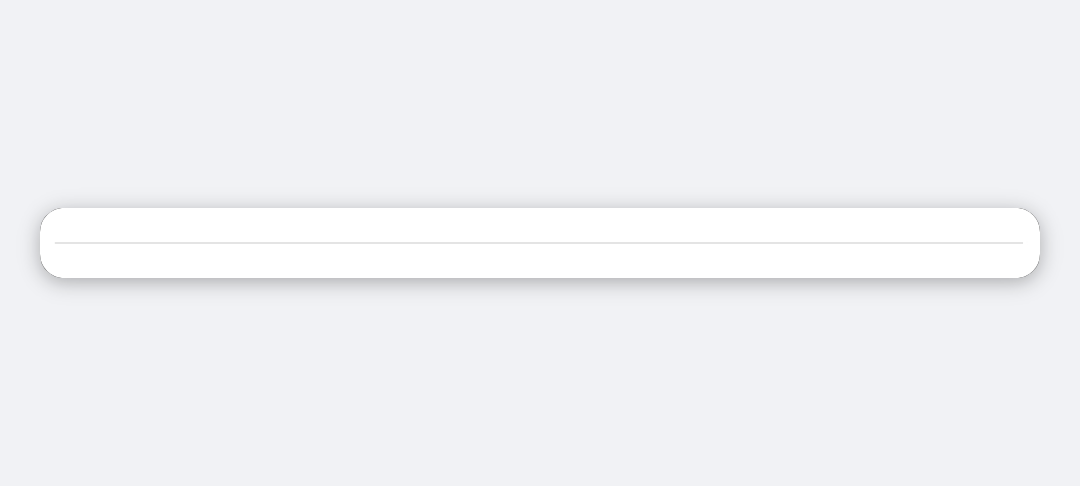 Divider All plans
The Divider block draws a thin horizontal line to separate the blocks around it.
Guides by topic
Block visibility
Show a block only when conditions match.
Checkout rules
Hide payment methods, block checkout, change the cart, call your API.
Translations
Show blocks in every language your store sells in.
Plans, branding & files
Plans, checkout branding and moving blocks between stores.
Reference
Every condition, operator, placement and plan gate.
Troubleshooting
Something is not behaving as expected at checkout.
- Block not showing in checkout
- "Block not found" in the checkout editor
- Checkout rule not applying
- Error message not blocking checkout
- Translations not showing in checkout
- A feature is locked behind an upgrade
- Upsell products not showing in checkout
- Block import fails with an invalid JSON error
- The Branding page is missing
- Step Indicator not showing in checkout
Can't find what you need?
Open the app and click Support to chat with the team. We usually reply within a few hours.