How to set up the Conditional Checkbox block
In short
The Conditional Checkbox block shows a checkbox that reveals extra fields when the buyer ticks it. Add the block, write its Label, then under Blocks add Text Input or Checkbox fields. When the box is ticked, required Text Input fields inside it must be filled, and match their pattern, before the buyer can continue.
Category
Custom Fields
Plan
Deluxe only
Where it shows
Shopify checkout
Saves to order
Attribute or metafield
✓ Applies to
- Deluxe plan only (not on Advanced)
- Shopify Plus checkout
- Any checkout position: body, after the header, or around the delivery address
✕ Doesn't apply to
- Nesting dropdowns, date pickers or other block types. Only Text Input and Checkbox can be nested
- Saving the main checkbox's own tick to the order
What the Conditional Checkbox block does
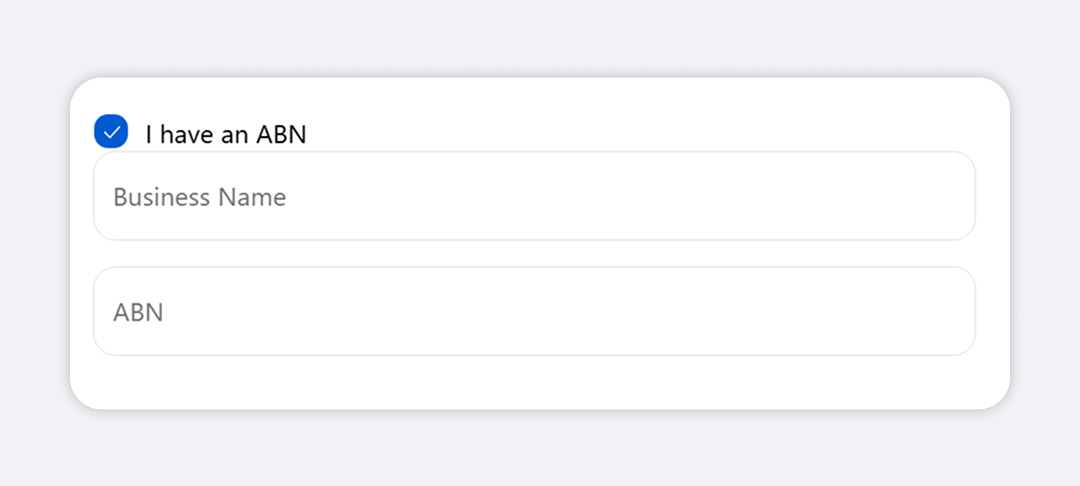
The block shows a checkbox with your label. When the buyer ticks it, the fields you nested under it appear below: Text Input fields, extra checkboxes, or both. Unticking hides them again. While the box is ticked, checkout won’t continue until every required nested Text Input has a valid value. Checkout shows each problem as an error, for example “PO number is required”.
When to use it
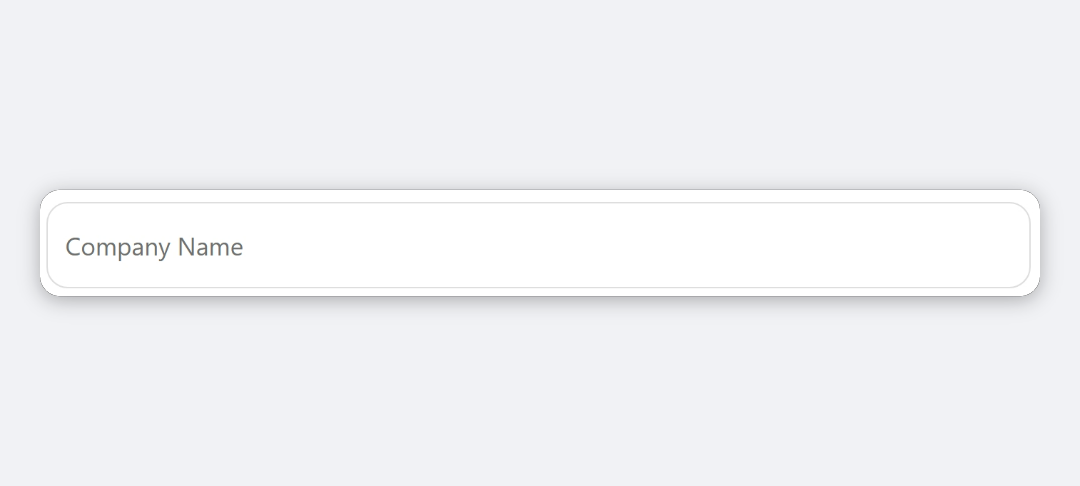
- Collect business details only when needed, such as “This is a business order” revealing company name and VAT number.
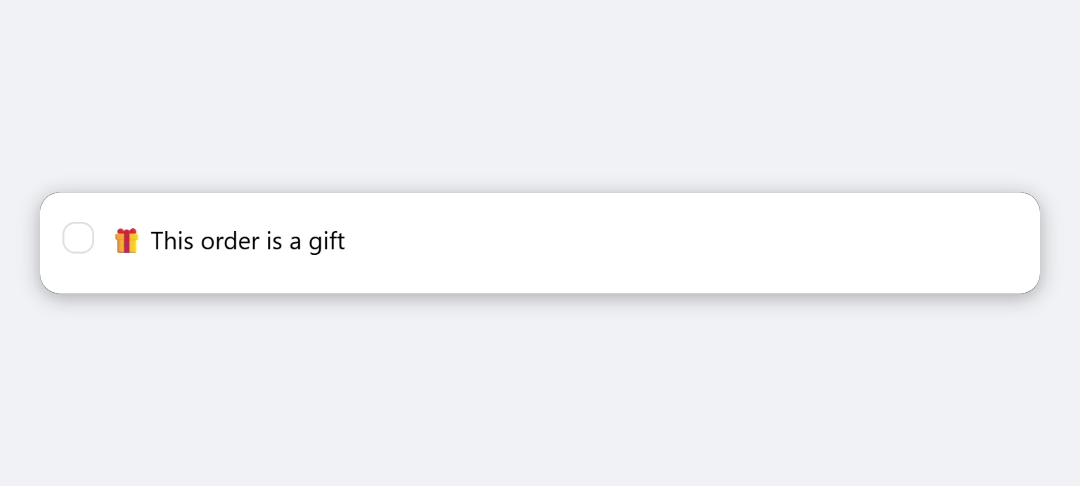
- Ask for gift details on request, such as “This is a gift” revealing a recipient name.
- Make a field mandatory, but only for buyers who opt in to the option that needs it.
Before you start
- The Deluxe plan. Conditional Checkbox isn’t included in Advanced. Choosing it on Advanced opens the Upgrade The Plan window.
- Allow the app to block checkout progress. Required fields only stop checkout if the Custom Block app block is allowed to block checkout progress in Shopify’s checkout editor.
Set it up
- In Checkout Ninja, go to Blocks and click Create New Block. Then click Start Fresh, or open an existing block you want to add it to.
- Click Add block and choose Conditional Checkbox.
- Enter the Label for the checkbox, for example This is a business order.
- Under Blocks, add an item and choose Text Input or Checkbox.
- For a Text Input, fill in its Label, Required, Where to store the value and, optionally, Validation. These work as on a Text Input block.
- Repeat step 4 for each field you want to reveal.
- Click Done. Check that Status is Active, then click Save and copy the Block ID.
- Click Open Checkout Editor. Add the Custom Block app block, paste the Block ID, allow it to block checkout progress, and save.
Give every nested Text Input its own Name of the attribute. If two fields share a name, or both fall back to the same label, one value overwrites the other.
Settings reference
| Setting | What it does | Default |
|---|---|---|
| Label | Text next to the main checkbox. | Empty |
| Blocks | The fields revealed when the box is ticked. Each item is a Text Input or a Checkbox. | None |
Nested Text Input
| Setting | What it does | Default |
|---|---|---|
| Label | The field’s label. Used in the error message, for example “Label is required”. | Empty |
| Required | Yes blocks checkout while the box is ticked and the field is empty or only spaces. | No |
| Where to store the value | Attribute name, or metafield as namespace.key. Blank uses the Label as the attribute name. | Attribute |
| Pattern (Regex) | JavaScript regular expression. On a required field, a value that doesn’t match blocks checkout. | Empty |
| Error Message | Shown in the field and at checkout when the pattern doesn’t match. | Empty (falls back to “Label is invalid”) |
Nested Checkbox
| Setting | What it does | Default |
|---|---|---|
| Checkbox Label | Text next to the extra checkbox. Its tick isn’t saved. | Empty |
Verify it worked
- Open your checkout. Only the main checkbox shows.
- Tick it. Your nested fields appear.
- Leave a required field empty and try to continue. Checkout stops with “Label is required”.
- Fill in the field and continue. Place a test order.
- Open the order in Orders. Each nested Text Input value is listed under Additional details with its attribute name.
- Negative check: in a new checkout, leave the box unticked. You can continue with the required fields empty.
Limitations
- Shopify Plus only for placement in the checkout steps. That’s a Shopify rule for all checkout apps.
- Only Text Input and Checkbox fields can be nested.
- The main checkbox’s tick isn’t saved, and neither are nested checkbox ticks.
- The box starts unticked on every page load, so fields hide again after a refresh. Values already saved stay on the cart.
- Unticking hides the fields but doesn’t clear their saved values.
- Blocking only applies to required Text Input fields. An optional field with a failing pattern shows an error but doesn’t block.
Troubleshooting
Buyers can continue with a required field empty. Check the field’s Required is Yes, and that the box is ticked. Then check the Custom Block app block is allowed to block checkout progress in the checkout editor. Without that permission, Shopify ignores the block.
Choosing the block opens “Upgrade The Plan”. Your plan doesn’t include Conditional Checkbox. See plans and features.
Only one nested value reaches the order. Two nested fields are saving under the same name. Give each Text Input a unique Name of the attribute.
Want to see this block in a live checkout first? See examples and use cases →
Frequently asked
Which fields can I put inside a Conditional Checkbox? +
Text Input and Checkbox. Each nested Text Input keeps its own Label, Required, storage and Validation settings.
Does it block checkout? +
Only while the box is ticked. Then every nested Text Input set to Required must have a value, and match its pattern if it has one. Unticked, the buyer can continue freely.
Is the main checkbox saved to the order? +
No. Only the values of nested Text Input fields are saved. To see who ticked the box, look for those values on the order.
What happens to values if the buyer unticks the box? +
The fields hide, but anything already typed stays saved on the cart and reaches the order. Ask buyers to clear a field before unticking if that matters for your fulfilment.