How to set up the Shipping Progress Bar block
In short
The Shipping Progress Bar block shows a message and a bar that fills as the cart subtotal approaches your free shipping threshold. Add the block, enter the Free Shipping Threshold that matches your free shipping rate, edit the in-progress and completed messages, then save and place the block in the checkout editor.
Category
Conversion Boosters
Plan
Advanced & Deluxe
Where it shows
Shopify checkout
Setup
No code, ~5 minutes
✓ Applies to
- Advanced and Deluxe plans
- Shopify Plus checkout
- Any checkout position: body, after the header, or around the delivery address
✕ Doesn't apply to
- Creating the free shipping rate. Set that up in Shopify's shipping settings
- Several milestones. Use the Progress Bar block for that
- Thank-you and order status pages
What the Shipping Progress Bar block does
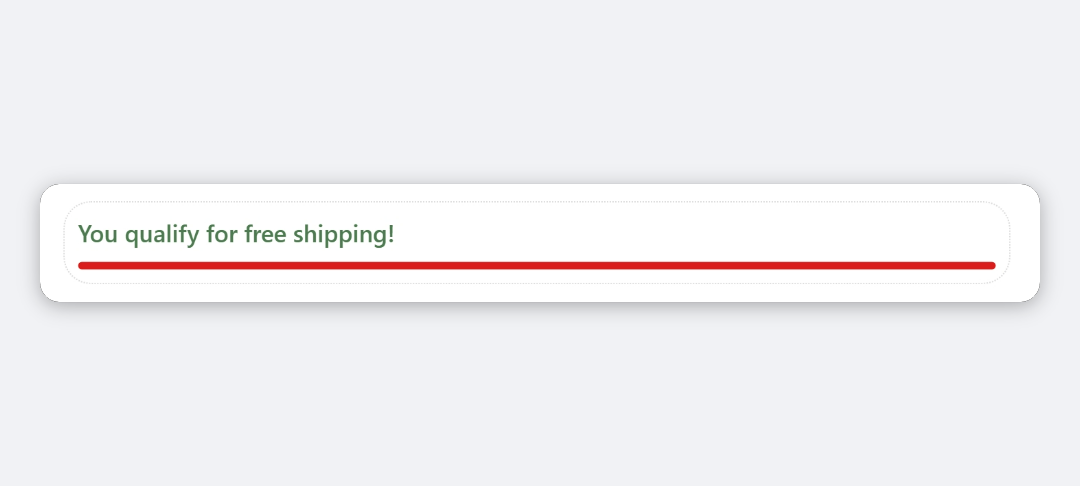
The block shows a message such as ”🚚 Add $23.50 more to get free shipping!”, a progress bar, and a small line with the current subtotal against the threshold and the percentage reached. The message and bar update as the buyer changes the cart. Once the subtotal reaches the threshold, the message switches to ”✅ You qualify for free shipping!” in green, the bar is full, and the amounts line is hidden.
When to use it
- Nudge buyers over your free shipping minimum so they add one more item instead of paying for shipping.
- Pair it with an upsell block, so buyers who are close can reach the threshold without leaving checkout.
- Reassure buyers who already qualify with the completed message.
Before you start
- Set up a free shipping rate in your Shopify admin under Settings → Shipping and delivery, with a minimum order price. The block doesn’t change shipping rates.
- An Advanced or Deluxe plan. Shipping Progress Bar is included in both.
Set it up
- In Checkout Ninja, go to Blocks and click Create New Block. Then click Start Fresh, or open an existing block you want to add it to.
- Click Add block and choose Shipping Progress Bar.
- Under Configuration, set Free Shipping Threshold to the same minimum as your free shipping rate, for example
75. - Edit Message (In Progress). Keep
{remaining}where the amount should appear. - Edit Message (Completed).
- (Optional) Under Appearance and Advanced Styling, set the bar colour, text size and container.
- Click Done. Check that Status is Active, then click Save and copy the Block ID.
- Click Open Checkout Editor. Add the Custom Block app block where you want the bar, usually after the header or near the delivery address. Paste the Block ID and save.
The threshold isn’t converted between currencies. It’s compared with the subtotal in whatever currency the buyer checks out in. If you sell in several currencies, create one block per currency with its own threshold, and show each one with a Shipping Country visibility condition.
Settings reference
Configuration
| Setting | What it does | Default |
|---|---|---|
| Free Shipping Threshold | Subtotal needed for free shipping, in store currency. Required. If it’s empty or 0, the block is hidden. | 100 |
| Message (In Progress) | Shown until the threshold is reached. {remaining}, {current} and {threshold} are replaced with amounts. | 🚚 Add {remaining} more to get free shipping! |
| Message (Completed) | Shown once the subtotal reaches the threshold. Placeholders aren’t replaced here. | ✅ You qualify for free shipping! |
| Placeholder | Replaced with |
|---|---|
{remaining} | Amount still needed to reach the threshold |
{current} | Current cart subtotal |
{threshold} | Your Free Shipping Threshold |
Each placeholder is replaced once per message. Amounts are formatted with the checkout currency symbol and two decimals.
Appearance
| Setting | What it does | Default |
|---|---|---|
| Progress Bar Color | Info uses your checkout’s default bar colour. Critical shows it in red. Shopify supports only these two. | Info |
| Text Size | Size of the message. Extra Small and Small use small text; Base uses normal text; Medium uses bold text; Large and Extra Large show it as a heading. | Base |
Advanced Styling
| Setting | Options | Default |
|---|---|---|
| Background | Transparent, Base, Subdued | Base |
| Border | None, Base, Dotted | Base |
| Border Radius | None, Small, Base, Large | Small |
| Padding | None, Extra Tight, Tight, Base, Loose, Extra Loose | Base |
| Element Spacing | Extra Tight, Tight, Base, Loose, Extra Loose | Base |
Verify it worked
- Go to checkout with a cart below the threshold. The message shows the right remaining amount, and the bar is partly filled.
- Add products until the subtotal passes the threshold. The completed message shows in green and the bar is full.
- Check that the free shipping rate is offered in the shipping step at the same point.
- Negative check: set Free Shipping Threshold to
0and save. The block disappears.
Limitations
- Shopify Plus only for placement in the checkout steps. That’s a Shopify rule for all checkout apps.
- Visual only. It never changes shipping rates, so keep the threshold in sync with your Shopify shipping settings by hand.
- One threshold per block, with no currency conversion.
- To show the messages in other languages, use the block’s language tabs. See translate checkout blocks.
- The bar supports only Shopify’s default and critical colours.
Troubleshooting
The block doesn’t show in checkout. Check that Free Shipping Threshold is set and greater than 0. Then run through the general checklist.
The remaining amount looks wrong. The bar tracks the subtotal before shipping and taxes. In a store that sells in several currencies, the threshold is read in the buyer’s currency without conversion. Use one block per currency.
The message shows {remaining} as text.
Check the spelling: placeholders are lowercase with curly braces, for example {remaining}. Placeholders are only replaced in Message (In Progress).
The bar is complete but free shipping isn’t offered. The block doesn’t control shipping rates. Check the free shipping rate’s minimum in Settings → Shipping and delivery matches your threshold.
Want to see this block in a live checkout first? See examples and use cases →
Frequently asked
Does the bar give free shipping? +
No. It's visual only. Set up the free shipping rate itself in your Shopify admin under Settings, Shipping and delivery, with the same minimum as the Free Shipping Threshold.
Which amount does the bar track? +
The cart subtotal: the sum of the line items before shipping and taxes.
What placeholders can I use in the message? +
{remaining} for the amount still needed, {current} for the current subtotal and {threshold} for your threshold. Each is formatted as money.
Does it convert the threshold for other currencies? +
No. The threshold is compared with the subtotal in the buyer's checkout currency as a plain number. If you sell in several currencies, show a separate block per market with visibility conditions.