How to set up the Image block
In short
The Image block shows one image from your Shopify Files in checkout. Add an Image block, click Open File Browser under Select Image, pick or upload your image and click Done. The image displays at its own size, so size the file before you upload it.
Category
Layout & Content
Plan
Advanced & Deluxe
Where it shows
Shopify checkout
Setup
No code, ~5 minutes
✓ Applies to
- Advanced and Deluxe plans
- Shopify Plus checkout
- Any checkout position: body, after the header, or around the delivery address
✕ Doesn't apply to
- Clickable images. The image can't link anywhere
- Alt text. The block has no alt text setting
- Thank-you and order status pages
What the Image block does
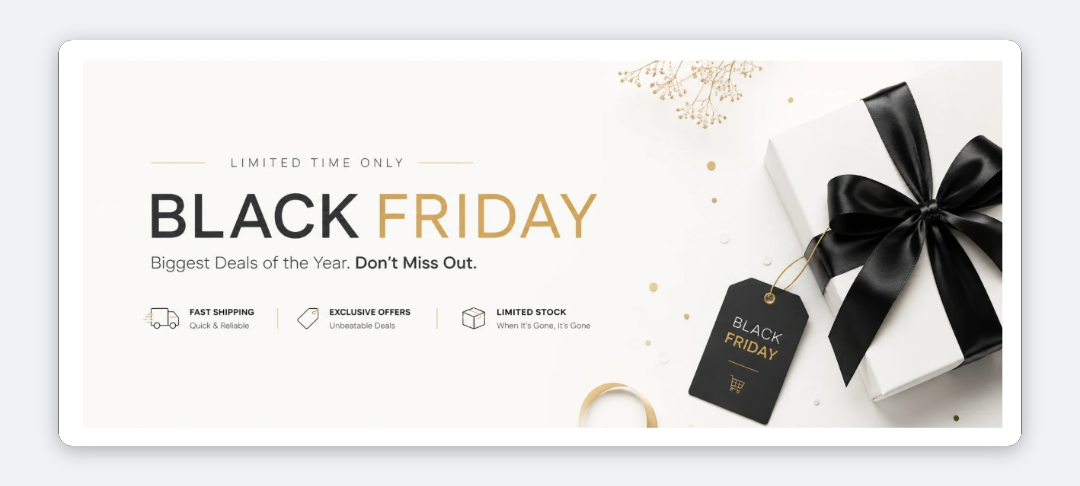
The block shows one image in checkout, taken from your store’s Shopify Files. It displays at the image’s natural size, for example a guarantee graphic, a seasonal banner or a brand visual.
When to use it
- Show a guarantee or award graphic near the payment step.
- Add a seasonal or campaign visual without changing your theme.
- Pair an image with a heading to introduce a section.
Before you start
- Size your image to the width you want it to appear at. The block doesn’t resize it.
- (Optional) Upload it to Content → Files in your Shopify admin. You can also upload from the app.
Set it up
- In Checkout Ninja, go to Blocks and click Create New Block. Then click Start Fresh, or open an existing block you want to add it to.
- Click Add block and choose Image.
- Under Select Image, click Open File Browser.
- In Select file, click your image, or click Add media to upload a new one. Then click Done.
- Click Done. Check that Status is Active, then click Save and copy the Block ID.
- Click Open Checkout Editor. Add the Custom Block app block where you want the image, paste the Block ID and save.
Settings reference
| Setting | What it does | Default |
|---|---|---|
| Select Image | The image to show, chosen from your Shopify Files. The block is hidden until an image is selected. | None |
| Resolution | A value from 1 to 4. It’s saved with the block but not currently used in checkout. | Not set |
Verify it worked
- Open your checkout. The image shows where you placed the Custom Block.
- Check it on a phone. If it’s too large or too small, resize the file, upload it again and select it.
Limitations
- Shopify Plus only for placement in the checkout steps. That’s a Shopify rule for all checkout apps.
- One image per Image block, at its natural size. There’s no width, alignment or cropping setting.
- No alt text and no link.
Troubleshooting
The image doesn’t show. Check that an image is selected under Select Image. The block hides itself when it’s empty. Then run through the general checklist.
The image is too big or too small. The block shows the image at its own pixel size. Resize the file, upload it again with Add media, and select the new one.
Changing Resolution makes no difference. That’s expected. Checkout doesn’t use the Resolution setting at the moment.
Want to see this block in a live checkout first? See examples and use cases →
Frequently asked
Where do the images come from? +
From your store's Shopify Files. The file browser lists them and has an Add media button to upload a new one.
How big will the image be in checkout? +
It displays at its natural size and isn't stretched to fill the width. Resize the image file to the size you want before uploading it.
What does the Resolution setting do? +
It's saved with the block, but the checkout doesn't currently use it. The image always shows at its natural size.
Can I link the image to a page? +
No. The Image block shows the image only. To pair an image with a link, use the Collapsible Card block, which has a logo and a link.