How to set up the Coupon List block
In short
The Coupon List block shows a collapsible list of discount codes in checkout, each with an Apply button. Create the discount codes in Shopify first, then add the Coupon List block, enter each code and a short description under Manual Coupons, save, and place the block in the checkout editor.
Category
Conversion Boosters
Plan
Advanced & Deluxe
Where it shows
Shopify checkout
Setup
No code, ~5 minutes
✓ Applies to
- Advanced and Deluxe plans
- Shopify Plus checkout
- Any checkout position: body, after the header, or around the delivery address
✕ Doesn't apply to
- Creating discounts. Codes must already exist in Shopify Discounts
- Automatic discounts, which apply without a code
- Thank-you and order status pages
What the Coupon List block does
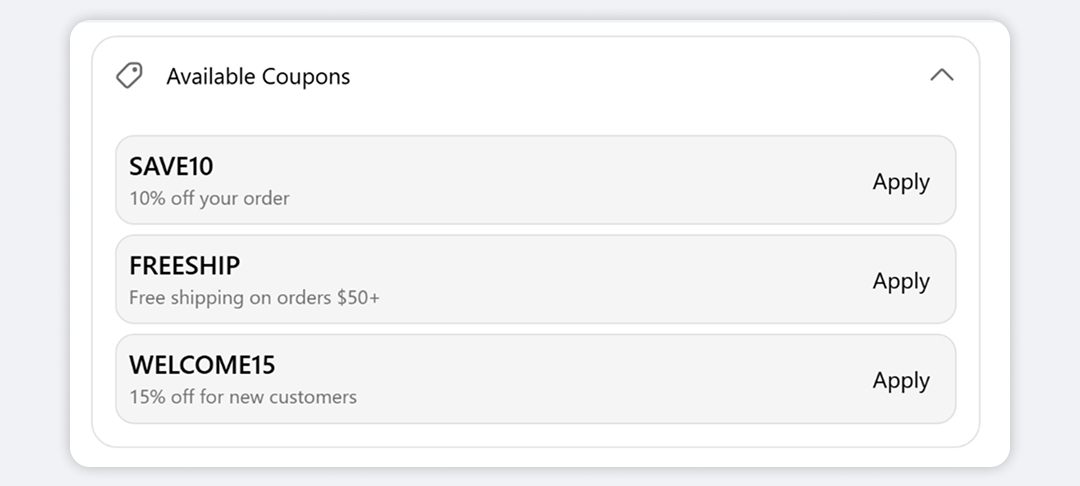
The block shows a bordered panel with a discount icon and your title, for example “Available Coupons”. It opens expanded, and the buyer can collapse it. Inside, each coupon shows its code, a short description and an Apply link. Clicking Apply adds the code to the checkout, exactly as if the buyer had typed it into Shopify’s discount field.
When to use it
- Stop buyers leaving checkout to hunt for codes by showing the ones you’re happy to give.
- Promote tiered offers, such as SAVE10 on orders over $50 and SAVE20 over $100, so buyers add more to reach the next one.
- Show a code only for certain carts, such as carts with a specific product, by combining the block with visibility conditions.
Before you start
- Create each discount code in your Shopify admin under Discounts. The block doesn’t create or check discounts.
- An Advanced or Deluxe plan. Coupon List is included in both.
Set it up
- In Checkout Ninja, go to Blocks and click Create New Block. Then click Start Fresh, or open an existing block you want to add it to.
- Click Add block and choose Coupon List.
- Change the Title if you want.
- Under Manual Coupons, add a coupon. Enter the Coupon Code exactly as it is in Shopify, and a Description such as “10% off orders over $50”. Both are required.
- Repeat for each coupon, in the order you want them shown.
- (Optional) Set Max Coupons to Display.
- Click Done. Check that Status is Active, then click Save and copy the Block ID.
- Click Open Checkout Editor. Add the Custom Block app block where you want the coupons, paste the Block ID and save.
Only show codes the cart can actually use. Add a Cart Total condition under Enable conditional block visibility so a “$50 minimum” coupon appears only once the cart qualifies. See every condition.
Settings reference
| Setting | What it does | Default |
|---|---|---|
| Title | Text in the panel header. | Available Coupons |
| Max Coupons to Display | The most coupons shown. Extra coupons are cut from the end of the list. | 5 when left empty |
| Manual Coupons | The coupons to list, each with a Coupon Code and a Description. | None |
Manual Coupons
| Field | What it does |
|---|---|
| Coupon Code | The code applied when the buyer clicks Apply. It must match a discount code in Shopify. Required. |
| Description | Short line under the code saying what it gives. Required. |
When Manual Coupons is empty
If you don’t add any manual coupons, the block reads from an older, app-level coupon list instead. It shows up to 30 entries whose status is Active. This list isn’t available from the app menu, so for new blocks, always add coupons under Manual Coupons. Once you add one manual coupon, the older list is ignored.
Verify it worked
- Go to checkout. The panel shows your title and each coupon’s code and description.
- Click Apply on a coupon the cart qualifies for. The link shows “Applying…”, then the discount appears in the order summary.
- Negative check: click Apply on a coupon the cart doesn’t qualify for. Shopify’s error shows in red under that coupon.
Limitations
- Shopify Plus only for placement in the checkout steps. That’s a Shopify rule for all checkout apps.
- The block doesn’t check codes before showing them. An expired or deleted code still appears, and fails when applied.
- Whether codes combine is decided by each discount’s combination settings in Shopify, not by the block.
- The Apply and Applying… text can’t be changed.
Troubleshooting
The block shows no coupons, or doesn’t show at all. Check that Manual Coupons has at least one coupon. If it’s empty, the block uses the older app-level list, which is usually empty for new stores. Then run through the general checklist.
A coupon shows an error when applied. The message comes from Shopify. Check the discount in Discounts: it must be active, within its dates, and the cart must meet its minimum and eligibility rules. Check the Coupon Code matches exactly.
Only some of my coupons appear. Max Coupons to Display limits the list, and is 5 when left empty. Raise it, or move the coupons you want most to the top.
The block shows “Error loading coupons”. This only happens when the block reads the older app-level list and the request fails. Add your coupons under Manual Coupons to avoid it.
Want to see this block in a live checkout first? See examples and use cases →
Frequently asked
Does the Coupon List create the discounts? +
No. It only lists codes and applies them. Create each code in Shopify under Discounts first, with the value, dates and eligibility you want.
What happens if a code doesn't apply? +
Shopify's reason, for example that the cart doesn't meet the minimum, shows under that coupon for about 10 seconds. The block doesn't check codes in advance.
Can I show different coupons to different buyers? +
Yes. Create a separate block for each set of coupons and use visibility conditions, for example by cart total or products in the cart, to decide which one shows.
What if I leave Manual Coupons empty? +
The block falls back to an older app-level coupon list that isn't available from the app menu. For new blocks, add your coupons under Manual Coupons.