How to set up the Testimonial block
In short
The Testimonial block shows a single customer quote in checkout, with stars, a title, the review text, the author's name, a date and an optional photo. Add the Testimonial block, enter the Content and Author, set the Star Rating, save, and place the block in the checkout editor.
Category
Trust & Security
Plan
Advanced & Deluxe
Where it shows
Shopify checkout
Setup
No code, ~5 minutes
✓ Applies to
- Advanced and Deluxe plans
- Shopify Plus checkout
- Any checkout position: body, after the header, or around the delivery address
✕ Doesn't apply to
- Importing reviews from a review app. You type the testimonial in yourself
- Several testimonials in one block, or rotating quotes
- Thank-you and order status pages
What the Testimonial block does
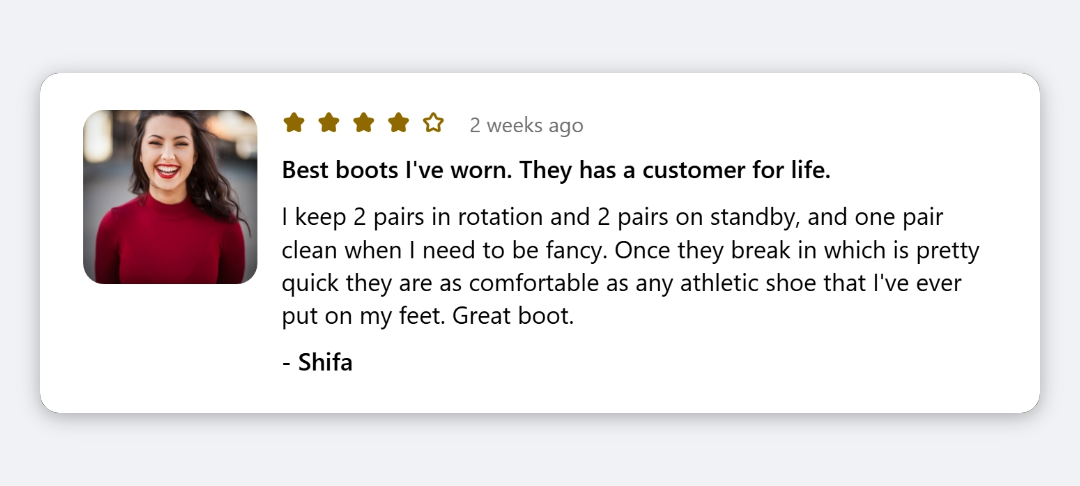
The block shows one customer quote in checkout. A row of five stars and the review date sit at the top, then a bold title, the quote, and the author’s name, for example ”- Emily R.”. If you add a photo, it appears as a 100px square to the left of the text. It’s display only.
When to use it
- Put one strong, specific review next to the pay button, where buyers hesitate.
- Match the quote to the cart. Show a testimonial about the product being bought, using a product visibility condition.
- Add social proof before you have many reviews. One curated quote does the job without a review platform.
Before you start
- Have the review text ready, with the customer’s permission to use it and their photo.
- Host the photo at a public https URL, for example in Content → Files in your Shopify admin.
- An Advanced or Deluxe plan. Testimonial is included in both.
Set it up
- In Checkout Ninja, go to Blocks and click Create New Block. Then click Start Fresh, or open an existing block you want to add it to.
- Click Add block and choose Testimonial.
- Replace the sample text in Title, Content and Author. Content and Author are required.
- (Optional) Paste a photo URL into Image URL.
- Under Star Rating, keep Dynamic Stars and set Number of Stars, or choose Static Image and paste a Star Image URL.
- Set Review Date, or clear it to hide the date.
- Click Done. Check that Status is Active, then click Save and copy the Block ID.
- Click Open Checkout Editor. Add the Custom Block app block where you want the quote. Paste the Block ID and save.
The block starts with a sample quote about a Pilates reformer. Replace the Title, Content, Author and Review Date before you set the block to Active.
Settings reference
| Setting | What it does | Default |
|---|---|---|
| Title | Bold heading above the quote. Leave empty to hide it. | ABSOLUTELY LOVE MY FLO PILATES REFORMER! |
| Content | The quote itself (up to 3 lines in the editor). Required. | The glide is smooth, the build is sturdy… |
| Author | Name shown in bold after a dash. Required. | Emily R. |
| Image URL | Photo of the reviewer or product, shown as a 100px square, cropped to fit. Leave empty for no photo. | Empty |
| Star Rating | Dynamic Stars or Static Image. | Dynamic Stars |
| Number of Stars | (Dynamic Stars) 1–5. That many stars are filled and the rest are outlined, out of 5. | 5 |
| Star Image URL | (Static Image) URL of your own rating image, shown up to 100px wide. | Empty |
| Review Date | Free text shown small and grey beside the stars. Leave empty to hide it. | 04/02/2025 |
Verify it worked
- Open your checkout with any product in the cart. The stars, date, title, quote and author show in that order.
- If you set an Image URL, the photo shows on the left as a square.
- Check the star count matches Number of Stars.
Limitations
- Shopify Plus only for placement in the checkout steps. That’s a Shopify rule for all checkout apps.
- One quote per block, with no carousel. For several reviews, use Reviews Gallery or Review Card.
- Stars use your checkout’s warning colour. There’s no colour setting.
- Dynamic stars are whole stars only. Use Static Image if you need a half star.
- The photo is always cropped to a square.
Troubleshooting
The sample Pilates quote shows in checkout. The block’s defaults are sample text. Open the block and replace Title, Content, Author and Review Date, then save.
The photo or star image doesn’t show.
Check the URL opens in a browser, starts with https://, and points straight to an image file, not a web page.
Choosing the block opens “Upgrade The Plan”. Testimonial isn’t on your current plan. See the upgrade fix.
Want to see this block in a live checkout first? See examples and use cases →
Frequently asked
Can I show more than one testimonial? +
One Testimonial block shows one quote. Add several Testimonial blocks to the same checkout block, or use the Reviews Gallery block for a set of reviews in one layout.
Can I show a different testimonial for each product? +
Yes. Put each testimonial in its own checkout block and turn on Enable conditional block visibility with a product condition.
Can I use my own star graphic? +
Yes. Set Star Rating to Static Image and paste the image's URL into Star Image URL. It's shown up to 100px wide.
Does the testimonial come from a review app? +
No. You type the title, quote, author and date yourself. Only use real customer reviews, with the customer's permission.