How to set up the Progress Bar block
In short
The Progress Bar block shows a segmented bar that fills as the buyer moves toward your milestones, such as $50 for free shipping and $100 for a gift. Add the block, choose what to Track by (order subtotal, item quantity or specific products), add one or more milestones, write the messages, then save and place the block in the checkout editor.
Category
Conversion Boosters
Plan
Advanced & Deluxe
Where it shows
Shopify checkout
Setup
No code, ~5 minutes
✓ Applies to
- Advanced and Deluxe plans
- Shopify Plus checkout
- Any checkout position: body, after the header, or around the delivery address
✕ Doesn't apply to
- Applying discounts or gifts. The bar is visual only
- Tracking collections or product tags. Track a list of products instead
- Thank-you and order status pages
What the Progress Bar block does
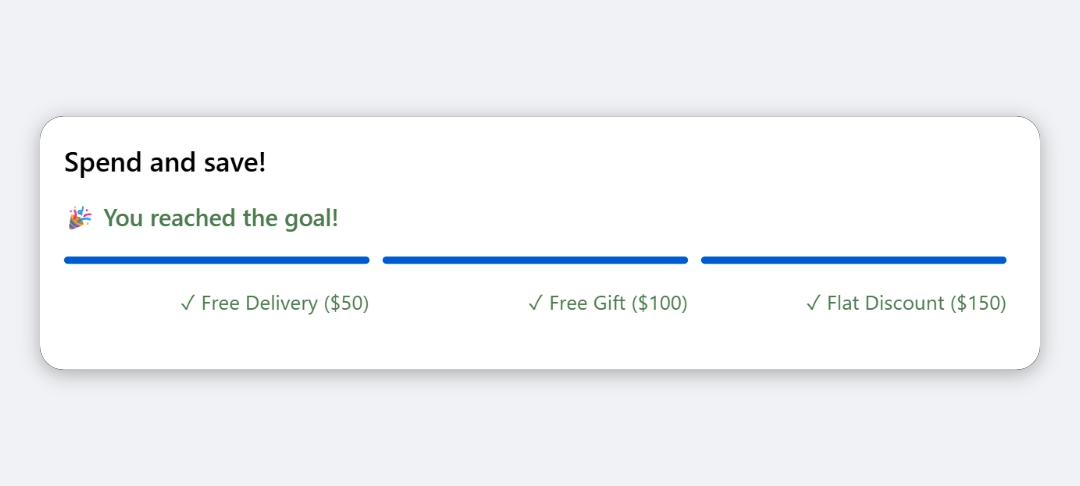
The block shows an optional heading, a message, and a bar split into one segment per milestone. Each segment fills as the buyer moves through it. Under each segment is the milestone’s label, such as “Free shipping” or “10% off”, with a ✓ once reached. A small line shows the current value against the final goal and the percentage.
When the final milestone is reached, the message changes to your completed text and the readout is hidden.
When to use it
- Show tiered spend rewards, such as free shipping at $50 and a free gift at $100.
- Encourage bundles by tracking item quantity, for example “Buy 3, get 15% off”.
- Promote a product line by tracking only selected products, for example “Add 2 more candles to unlock the gift set”.
Before you start
- Set up the rewards themselves in Shopify, such as a free shipping rate, an automatic discount, or a checkout rule that adds a gift. The bar doesn’t apply anything.
- Decide your milestones and the unit: money, item count, or count of specific products.
Set it up
- In Checkout Ninja, go to Blocks and click Create New Block. Then click Start Fresh, or open an existing block you want to add it to.
- Click Add block and choose Progress Bar.
- Under Content, set the Heading and write Text above bar, for example
You're {remaining} away from your next reward. - Under Track by, choose Order subtotal, Item quantity or Specific products. For Specific products, select the products under Products to track.
- Under Milestones, add a milestone. Enter its Target value in the unit you chose and a Milestone label. Add more milestones if you need them.
- (Optional) Set the colours, alignment, text size and card under Appearance and Card.
- Click Done. Check that Status is Active, then click Save and copy the Block ID.
- Click Open Checkout Editor. Add the Custom Block app block where you want the bar, paste the Block ID and save.
The block stays hidden until it has at least one milestone with a target above 0. Milestones are sorted by target, so you can add them in any order.
Settings reference
Content
| Setting | What it does | Default |
|---|---|---|
| Heading | Title above the bar. Empty hides it. | Spend and save! |
| Text above bar | Message above the bar. Accepts placeholders. | Empty |
| Text below bar | Message below the bar. Accepts placeholders. | Empty |
| Text when all milestones reached | Replaces both messages once the final milestone is hit. Accepts placeholders. | 🎉 You reached the goal! |
| Placeholder | Replaced with |
|---|---|
{current} | Current value: the subtotal, item count or tracked-product count |
{remaining} | Amount or count left to reach the next milestone |
{target} | The next milestone’s target |
{goal} | The final (largest) milestone’s target |
With Order subtotal, values show as money in the checkout currency. Otherwise they show as whole numbers.
Track by
| Option | What it measures | Milestone targets mean |
|---|---|---|
| Order subtotal | Cart subtotal | Money amounts, e.g. 50 = a subtotal of 50 in the checkout currency |
| Item quantity | Total quantity of all items in the cart | Item counts |
| Specific products | Total quantity of the products in Products to track, any variant | Counts of those products |
The default is Order subtotal. With Specific products, the block is hidden until at least one tracked product is in the cart.
Milestones
Up to 6 milestones. The bar fills toward the largest target.
| Field | What it does | Default |
|---|---|---|
| Target value | The value to reach, in the Track by unit. Minimum 1. | 50 |
| Milestone label | Shown under the milestone’s segment. Empty shows the target value instead. | Free shipping |
Appearance
| Setting | What it does | Default |
|---|---|---|
| Bar color | Default (brand accent) or Critical (red). Shopify supports only these two. | Default (brand accent) |
| Reached / checkmark color | Colour of the ✓, reached labels and completed text: Success (green), Warning (orange), Critical (red) or Subdued. | Success (green) |
| Content alignment | Leading, Center or Trailing, for the heading and text. The bar stays full width. | Leading |
| Text size | Small, Base or Large for the above and below messages. Large shows the message as a heading. | Base |
| Show milestone labels under the bar | Shows each milestone’s label under its segment. | On |
| Show current / goal readout | Shows the current value against the goal, and the percentage. Hidden once the goal is reached. | On |
Card
| Setting | What it does | Default |
|---|---|---|
| Wrap in a card | Puts the block in a bordered card. The settings below only apply when this is on. | Off |
| Border width | Base, Medium or Thick. | Base |
| Corner radius | None, Small, Base or Large. | Base |
| Background | None, Subdued or Base. | None |
| Padding | None, Tight, Base or Loose. | Base |
Verify it worked
- Go to checkout with a cart below your first milestone. The first segment is partly filled and the message shows the right remaining value.
- Add items until you pass the first milestone. Its segment is full and its label shows a ✓.
- Pass the final milestone. The completed text replaces the messages and the readout disappears.
- Negative check with Specific products: remove every tracked product from the cart. The block disappears.
Limitations
- Shopify Plus only for placement in the checkout steps. That’s a Shopify rule for all checkout apps.
- Visual only. It never applies discounts, gifts or shipping rates, so keep targets in sync with those by hand.
- No currency conversion. Subtotal targets are compared with the subtotal in the buyer’s checkout currency.
- No collection or tag tracking, because checkout doesn’t expose them. Select the products instead.
- Segments are equal width whatever the gap between targets.
Troubleshooting
The block doesn’t show in checkout. Add at least one milestone with a Target value of 1 or more. With Specific products, a tracked product must be in the cart. Then run through the general checklist.
The bar fills at the wrong point. Check Track by. A target of 50 means a 50 subtotal with Order subtotal, but 50 items with Item quantity.
The milestone label shows a number instead of text. The Milestone label is empty, so the target value is shown. Type a label.
Want to see this block in a live checkout first? See examples and use cases →
Frequently asked
Does the Progress Bar apply the discount when a milestone is reached? +
No. It only shows progress. Create the matching discount in Shopify, or use a checkout rule to add a gift product.
How many milestones can I add? +
Up to six. Two to four read best, because each milestone gets an equal-width segment.
What placeholders can I use? +
{current} for the current value, {remaining} for what's left to the next milestone, {target} for the next milestone and {goal} for the final one.
Why does the bar disappear with Specific products? +
In that mode the block hides itself until at least one of the tracked products is in the cart.