How to set up the Review Card block
In short
The Review Card block shows one review at a time in a card headed by a platform logo, such as Google or Trustpilot, with stars and arrows to move between reviews. You enter the reviews yourself. Add the Review Card block, pick a Platform Logo, add your reviews with a rating each, save, and place the block in the checkout editor.
Category
Trust & Security
Plan
Advanced & Deluxe
Where it shows
Shopify checkout
Setup
No code, ~5 minutes
✓ Applies to
- Advanced and Deluxe plans
- Shopify Plus checkout
- Any checkout position: body, after the header, or around the delivery address
✕ Doesn't apply to
- Importing reviews or ratings from Google, Trustpilot or other platforms. You type each review in yourself
- Thank-you and order status pages
What the Review Card block does
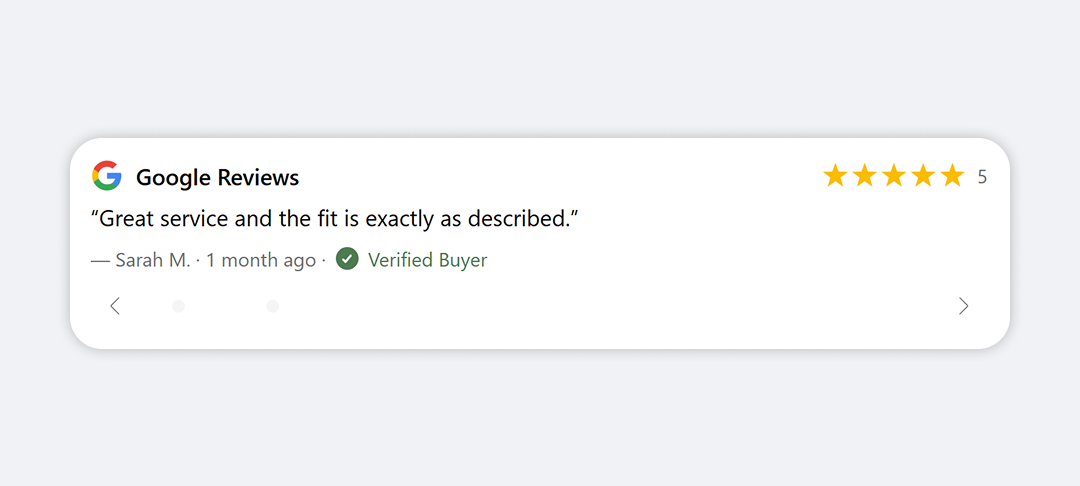
The block shows a single card in checkout. The header has the platform’s logo and name on the left, for example Google Reviews, and the current review’s stars and rating number on the right. Below that are the review text in quotation marks and a line like ”— Sarah K. · 2 weeks ago · ✓ Verified review”. With two or more reviews, arrows and dots under the card move between them, and the card can rotate on its own.
When to use it
- Borrow the trust of a known review platform by showing its logo alongside real reviews from it.
- Save space. One card cycles through several reviews in the height of one.
- Match the platform to the market, for example Trustpilot for UK buyers and Google for US buyers, with a country visibility condition on each block.
Before you start
- Copy the reviews you want to show from the platform: text, rating, reviewer name and date.
- For a platform that isn’t listed, host its logo at a public https URL.
Set it up
- In Checkout Ninja, go to Blocks and click Create New Block. Then click Start Fresh, or open an existing block you want to add it to.
- Click Add block and choose Review Card.
- Choose a Platform Logo. Header Title fills in with the platform’s name; edit it if you like.
- For Custom, paste your logo into Custom Logo URL and type a Header Title.
- Under Reviews, add a review and fill in Review Text, Reviewer Name, Date and Rating. Tick Show Verified Badge if you want the verified mark. Repeat for each review.
- (Optional) Under Carousel Settings, tick Auto-rotate carousel and Enable Read More collapse.
- (Optional) Adjust Card Styling, Text Styling and Advanced Settings.
- Click Done. Check that Status is Active, then click Save and copy the Block ID.
- Click Open Checkout Editor. Add the Custom Block app block where you want the card. Paste the Block ID and save.
The platform logo labels where the reviews came from. Only use a platform’s logo with reviews you actually received there.
Settings reference
Platform
| Setting | What it does | Default |
|---|---|---|
| Platform Logo | Google, Trustpilot, Yotpo, Judge.me, Reviews.io or Custom. Sets the header logo and the brand star colour. | |
| Header Title | Text beside the logo. Fills in from Platform Logo, and you can edit it. If empty, the platform’s name is used. | Empty (shows Google Reviews) |
| Custom Logo URL | (Custom only) Your logo’s URL. Must start with https://. | Empty |
Reviews (per review)
| Setting | What it does |
|---|---|
| Review Text | The review, shown in quotation marks (up to 3 lines in the editor). |
| Reviewer Name | Shown after a dash, for example — Sarah K. |
| Date | Free text, such as 2 weeks ago. |
| Show Verified Badge | Shows the verified icon and label. Off for new reviews. |
| Verified Badge Label | Text after the verified icon. If empty, Verified review is shown. |
| Rating (0–5, decimals ok) | Stars and the rating number in the card header, for example 4.8. Leave blank to hide the stars for this review. |
Carousel Settings
| Setting | What it does | Default |
|---|---|---|
| Auto-rotate carousel | Moves to the next review every 5 seconds. Needs 2 or more reviews. | Off |
| Enable Read More collapse | Cuts review text after 150 characters, with a Read more link. | Off |
With 2–5 reviews, dots show under the card. With 6 or more, a counter such as 2 / 8 shows instead.
Card Styling
| Setting | What it does | Default |
|---|---|---|
| Card Padding | None, Extra Tight, Tight, Base, Loose or Extra Loose. | Base |
| Corner Radius | None, Small, Base or Large. | Base |
| Border Width | None or Base. | Base |
| Background | Transparent, Base or Subdued. | Transparent |
Text Styling
Each has a Style Preset and Advanced Options (Size, Style, Color).
| Setting | What it styles | Default |
|---|---|---|
| Platform Heading | The platform name in the header. Only Style and Color apply. | Bold |
| Review Text | The quoted review. | Normal |
| Attribution (name · ✓ verified · date) | The name, date and verified label. | Small, grey |
Advanced Settings
| Setting | What it does | Default |
|---|---|---|
| Content Spacing | Gap between the header, the review and the carousel controls: Extra Tight, Tight, Base or Loose. | Base |
| Star Style | Brand colour uses the platform’s colour. For Trustpilot, it uses Trustpilot’s own star graphic. Token colour uses Star Color. | Brand colour |
| Star Color | (Token colour) Warning (amber), Success (green) or Subdued. | Warning (amber) |
| Verified Icon | Check, Check Circle or Profile. | Check |
| Verified Color | Success (green), Warning (amber) or Subdued. | Success (green) |
Verify it worked
- Open your checkout with any product in the cart. The card shows the platform logo, the header title and the first review.
- Check the stars and rating number match the first review’s Rating.
- Click the right arrow. The next review shows and its stars update.
- If you ticked Auto-rotate carousel, wait 5 seconds without clicking. The card should move on by itself.
Limitations
- Shopify Plus only for placement in the checkout steps. That’s a Shopify rule for all checkout apps.
- Reviews are entered by hand. The block doesn’t connect to Google, Trustpilot or any other platform, and shows no overall score or review count.
- The separator in the attribution line is always a dot.
- Attribution can’t be small and italic at the same time. Small takes priority, and Bold overrides both. That’s a Shopify checkout text limit.
- The Read more and Show less links are in English.
Troubleshooting
The block doesn’t show in checkout. The block hides itself when the Reviews list is empty. Add at least one review, then run through the general checklist.
The custom logo doesn’t show.
Custom Logo URL must start with https://. Check the URL opens in a browser and points straight to an image file.
No stars in the header. Enter a Rating above 0 for that review. Each review shows its own stars, so a review with a blank rating shows none.
The verified badge doesn’t show. Tick Show Verified Badge on each review where you want it. It’s off for new reviews.
Want to see this block in a live checkout first? See examples and use cases →
Frequently asked
Does Review Card pull reviews from Google or Trustpilot? +
No. The platform setting only chooses the logo, the header title and the brand star colour. You type each review's text, rating, name and date yourself.
Can I use a platform that isn't listed? +
Yes. Set Platform Logo to Custom, paste your logo's https URL into Custom Logo URL, and type the platform's name into Header Title.
How fast does the carousel rotate? +
With Auto-rotate carousel ticked, the card moves to the next review every 5 seconds. Clicking an arrow or dot restarts the timer. With it unticked, buyers move through reviews with the arrows.
Where does the rating next to the logo come from? +
It's the Rating of the review currently showing, not an overall score. It changes as the carousel moves. Leave a review's Rating blank to hide its stars.