How to set up the Message block
In short
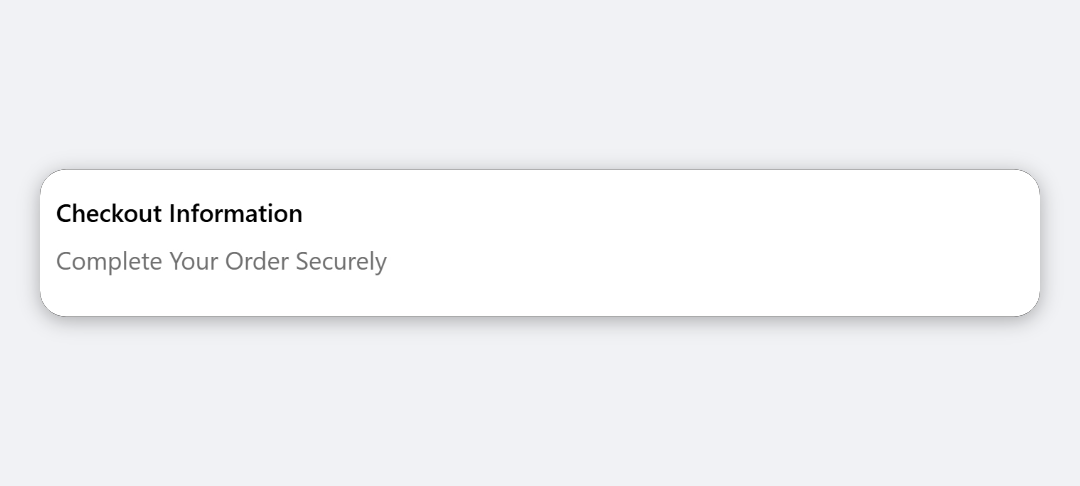
The Message block shows a one-message status banner in checkout, coloured by type. Add a Message block, type the text in Message, and choose a Type: Info, Warning, Error or Success. It displays text only. Buyers can't type into it.
Category
Layout & Content
Plan
Advanced & Deluxe
Where it shows
Shopify checkout
Setup
No code, ~5 minutes
✓ Applies to
- Advanced and Deluxe plans
- Shopify Plus checkout
- Any checkout position: body, after the header, or around the delivery address
✕ Doesn't apply to
- Collecting a note from the buyer. Use the Text Input or Gift Message block
- Blocking checkout with an error. Use a checkout rule
- Thank-you and order status pages
What the Message block does
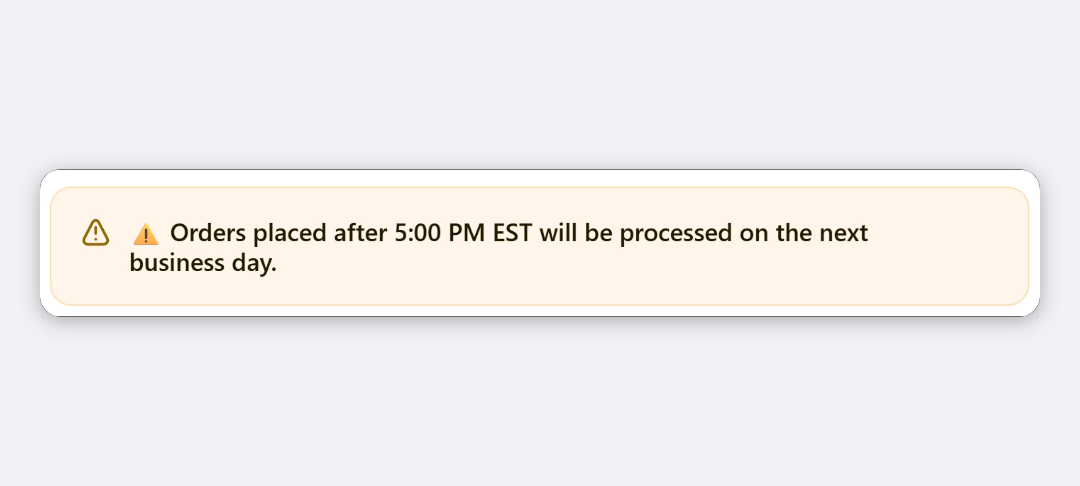
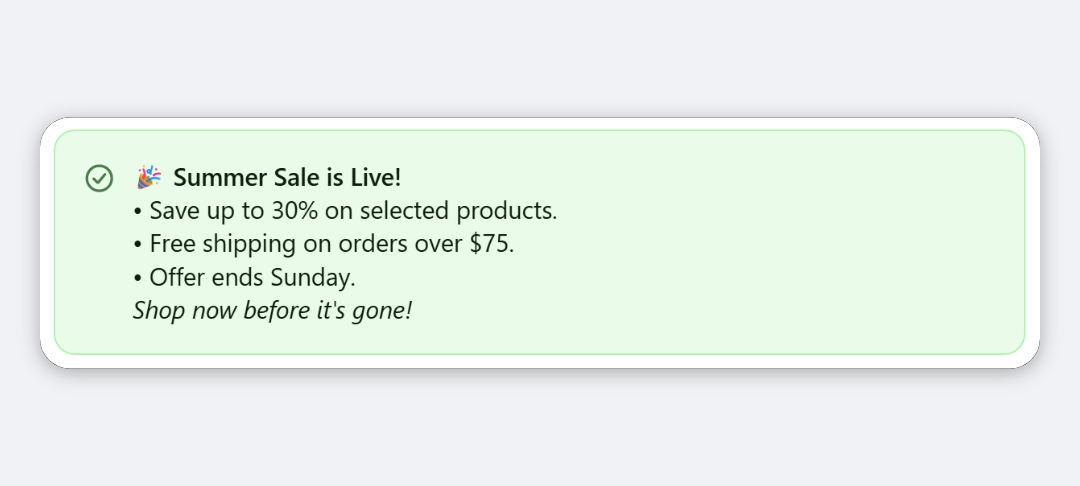
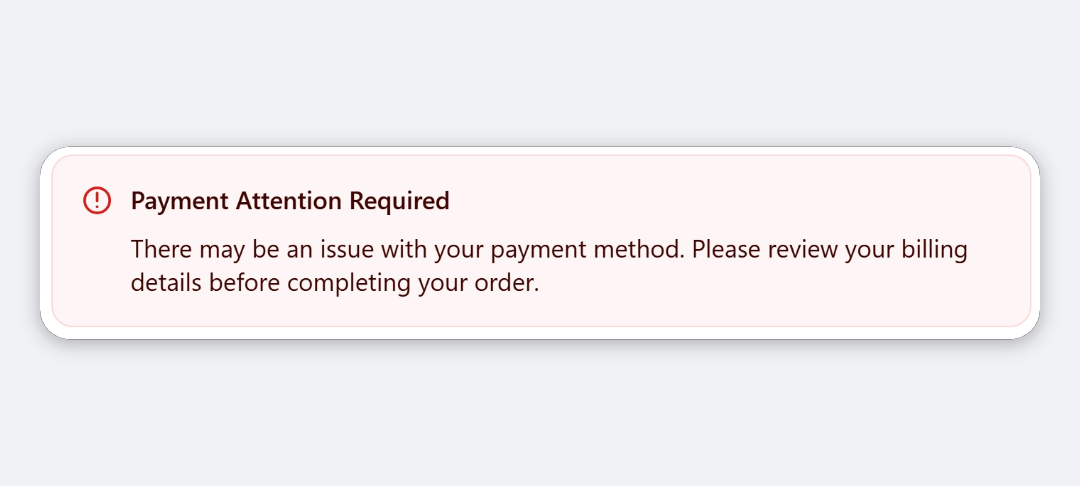
The block shows your text as a Shopify checkout banner. The Type (Info, Warning, Error or Success) sets the banner’s colour and icon, using Shopify’s standard banner styles. The text is display-only. Buyers can’t edit or reply to it.
When to use it
- Warn about delays, such as carrier disruption or a holiday cutoff.
- Confirm something good, for example that an order qualifies for free returns.
- Add a short policy reminder near the delivery address or payment step.
Before you start
- Nothing extra. The Message block is included in both the Advanced and Deluxe plans.
Set it up
- In Checkout Ninja, go to Blocks and click Create New Block. Then click Start Fresh, or open an existing block you want to add it to.
- Click Add block and choose Message.
- Type your text in Message.
- Choose a Type: Info, Warning, Error or Success.
- Click Done. Check that Status is Active, then click Save and copy the Block ID.
- Click Open Checkout Editor. Add the Custom Block app block where you want the banner, paste the Block ID and save.
To show the banner only for some orders, for example only to buyers shipping to one country, turn on Enable conditional block visibility and add a condition. See every condition.
Settings reference
| Setting | What it does | Default |
|---|---|---|
| Message | The banner text, as plain text. The banner is hidden when this is empty. | Empty |
| Type | Banner colour and icon: Info, Warning, Error or Success. | Info |
Verify it worked
- Open your checkout. The banner shows your text in the colour of the type you chose.
- If you set visibility conditions, open a checkout that doesn’t match them. The banner doesn’t show.
Limitations
- Shopify Plus only for placement in the checkout steps. That’s a Shopify rule for all checkout apps.
- The text is plain: no links, bold or italics.
- Colours come from Shopify’s banner styles and your checkout branding. You can’t set custom colours.
- The message is processed as a Liquid template, so text wrapped in
{{ }}or{% %}is treated as code rather than shown as typed.
Troubleshooting
The banner doesn’t show. Check that Message isn’t empty. The block hides itself when there’s no text. Then run through the general checklist.
Buyers can still check out after seeing an Error message. That’s expected. The Message block only displays text. To block checkout, set up a checkout rule.
Part of my message is missing.
Look for curly braces or {% in the text. They’re read as Liquid and may render as nothing. Remove them or reword.
Want to see this block in a live checkout first? See examples and use cases →
Frequently asked
Can buyers type a message into this block? +
No. The Message block displays your text as a banner. To collect a note from the buyer, use the Text Input or Gift Message block.
Does an Error message stop the buyer from checking out? +
No. Error only changes the banner's colour and icon. To stop checkout with an error, use a checkout rule with the Show Error Message action.
Can I add a link or bold text? +
No. The message is plain text. For links, lists and bold text, use the Rich Text Banner block. For buttons, use the Notice Banner block.
Can I show the message only to some buyers? +
Yes. Turn on Enable conditional block visibility on the checkout block and add conditions, such as country or cart total.