How to set up the TrustPilot block
In short
The TrustPilot block shows a title, an optional rating image and a scrolling row of review cards with Trustpilot stars. You type in each review yourself: it doesn't connect to Trustpilot or update on its own. Add the TrustPilot block, enter your reviews, save, and place the block in the checkout editor.
Category
Trust & Security
Plan
Advanced & Deluxe
Where it shows
Shopify checkout
Setup
No code, ~5 minutes
✓ Applies to
- Advanced and Deluxe plans
- Shopify Plus checkout
- Any checkout position: body, after the header, or around the delivery address
✕ Doesn't apply to
- A live Trustpilot feed. The block doesn't connect to your Trustpilot account; reviews and ratings are entered by hand and don't update
- Trustpilot's official TrustBox widgets
- Thank-you and order status pages
What the TrustPilot block does
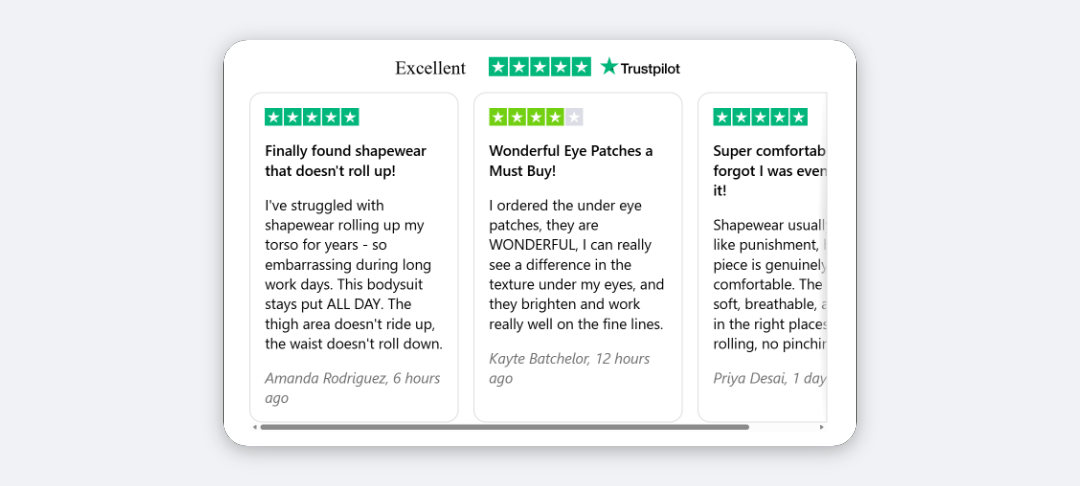
The block shows a centred title, for example “TrustPilot Reviews”, an optional overall rating image, and a row of review cards. Each card shows Trustpilot’s own star graphic for its rating, a bold title, the review text, and the reviewer’s name and date. Cards are at least 200px wide. When they don’t all fit, the row scrolls sideways.
This is not a live Trustpilot integration. You type every review and rating in by hand, and nothing updates automatically. Copy real reviews from your Trustpilot profile, and edit the block when you want to show newer ones.
When to use it
- Show your Trustpilot reputation at checkout, where buyers from the UK and EU often look for it.
- Pick a few recent, specific reviews from your Trustpilot profile to answer common doubts.
- Pair a rating badge image with review cards to show both your overall score and individual voices.
Before you start
- Copy the reviews you want to show from your Trustpilot profile: title, star rating, text, reviewer name and date.
- (Optional) Host an overall rating image at a public https URL, for example in Content → Files in your Shopify admin.
- An Advanced or Deluxe plan. TrustPilot is included in both.
Set it up
- In Checkout Ninja, go to Blocks and click Create New Block. Then click Start Fresh, or open an existing block you want to add it to.
- Click Add block and choose TrustPilot.
- Edit the Title, or clear it to hide it.
- (Optional) Paste a rating image URL into Overall Rating (Image Url).
- Under Reviews, add a review and fill in Title, Rating, Review, Name and Date. Repeat for each review.
- (Optional) Under Advanced Settings, set Layout Spacing.
- Click Done. Check that Status is Active, then click Save and copy the Block ID.
- Click Open Checkout Editor. Add the Custom Block app block where you want the reviews. Paste the Block ID and save.
Settings reference
Content
| Setting | What it does | Default |
|---|---|---|
| Title | Heading centred above the reviews. Leave empty to hide it. | TrustPilot Reviews |
| Max Reviews | Stored with the block, but checkout currently shows every review in the list. | 5 |
| Overall Rating (Image Url) | URL of a rating image, shown centred under the title at 280px wide, in a wide, short frame. Leave empty to hide it. | Empty |
Reviews (per review)
| Setting | What it does |
|---|---|
| Title | Bold line under the stars. |
| Rating | Star rating, 1–5. Rounded to the nearest whole star and shown with Trustpilot’s star graphic. |
| Review | The review text (up to 3 lines in the editor). |
| Name | Reviewer’s name, shown in grey italics before the date. |
| Date | Free text, such as 2 days ago, shown after the name. |
Advanced Settings
| Setting | What it does | Default |
|---|---|---|
| Layout Spacing | Gap between the header and the review cards: None, Extra Tight, Tight, Base, Loose or Extra Loose. | Loose |
Verify it worked
- Open your checkout with any product in the cart. The title, rating image and review cards show.
- Check each card’s stars match the Rating you entered.
- With four or more reviews, scroll the row sideways on a phone-width screen to reach the last card.
Limitations
- No Trustpilot connection. Reviews, ratings and your overall score are whatever you type in. They don’t update when you get new Trustpilot reviews.
- Shopify Plus only for placement in the checkout steps. That’s a Shopify rule for all checkout apps.
- Whole stars only. A rating of 4.5 shows as 5 stars. For half stars, use Reviews Gallery or Review Card.
- Max Reviews has no effect in checkout yet. Every review in the list is shown.
- The star graphics load from Trustpilot’s servers.
Troubleshooting
A card shows a broken or missing star image. Enter a number from 1 to 5 in that review’s Rating. A blank rating has no star graphic to show.
The overall rating image doesn’t show.
Check the Overall Rating (Image Url) opens in a browser and starts with https://. The image is framed wide and short, so a square badge appears small.
Choosing the block opens “Upgrade The Plan”. TrustPilot isn’t on your current plan. See the upgrade fix.
Want to see this block in a live checkout first? See examples and use cases →
Frequently asked
Does the TrustPilot block pull reviews from Trustpilot? +
No. There's no connection to Trustpilot. You type each review's title, rating, text, name and date into the block, and you update them yourself when you want to show newer reviews.
How do I show my overall Trustpilot score? +
Paste the URL of a rating image into Overall Rating (Image Url). It's shown centred under the title at 280px wide. The block doesn't read your score from Trustpilot.
Does Max Reviews limit how many reviews show? +
Not at the moment. Checkout shows every review in the Reviews list. To show fewer, remove reviews from the list.
Which Trustpilot rules apply? +
Only show real reviews from your Trustpilot profile, and follow Trustpilot's own guidelines on how you display them. The block doesn't check this for you.