How to set up the Upsell block
In short
The Upsell block lists product recommendations in checkout, each with an add-to-cart button. Add the Upsell block, choose a Recommendation Type (Related, Complementary or Custom Products), set how many products to show and pick a card design, then save and place the block in the checkout editor. Products already in the cart are left out automatically.
Category
Conversion Boosters
Plan
Deluxe only
Where it shows
Shopify checkout
Setup
No code, ~5 minutes
✓ Applies to
- Deluxe plan only (not on Advanced)
- Shopify Plus checkout
- Any checkout position: body, after the header, or around the delivery address
✕ Doesn't apply to
- Thank-you and order status pages
- Discounting the upsell. The block adds products at their normal price
What the Upsell block does
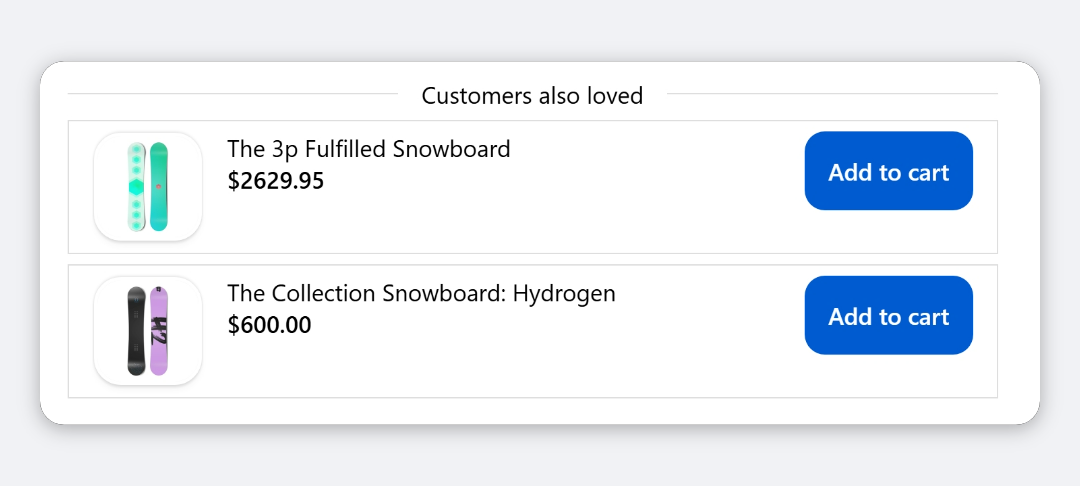
The block shows a title between two divider lines, for example ”✨ Customers also loved”, followed by a stack of product cards. Each card has the product image, title, price, a variant selector when the product has options, and an add-to-cart button. When the buyer clicks it, the product is added to the order straight away.
Products already in the cart never appear, so a card disappears once its product is added.
When to use it
- Suggest add-ons automatically with Shopify’s Related or Complementary recommendations, so the list changes with each cart.
- Promote a fixed set of products, such as accessories or best-sellers, with Custom Products.
- Sell subscriptions at checkout for products that have selling plans, with a one-time or subscribe choice on each card.
Before you start
- The Deluxe plan. Upsell isn’t included in Advanced. Choosing it on Advanced opens the Upgrade The Plan window. The Custom Products source is a separate premium feature: on plans without it, the product picker is replaced by Premium Feature and Upgrade to Unlock.
- Products available to buyers. Recommended and picked products must be active and available on your Online Store sales channel.
- For Complementary Products: set up complementary products in Shopify’s Search & Discovery app. Without them, Shopify has nothing to return.
Set it up
- In Checkout Ninja, go to Blocks and click Create New Block. Then click Start Fresh, or open an existing block you want to add it to.
- Click Add block and choose Upsell.
- Under Card Design Type, pick Compact Design or Detailed Design.
- Set No of Products to the most cards you want to show.
- Under Recommendation Type, choose Related Products, Complementary Products or Custom Products. For Custom Products, select the products to offer.
- (Optional) Under Subscription Display, choose Auto or Custom to offer subscriptions.
- (Optional) Change the Section Title. Tick Customize Button Labels to change the button and badge text, and click Manage translations to add other languages.
- Click Done. Check that Status is Active, then click Save and copy the Block ID.
- Click Open Checkout Editor. Add the Custom Block app block where you want the recommendations, paste the Block ID and save.
Hide the upsell once the cart is already large, or show it only for certain products, with Enable conditional block visibility. See every condition.
Settings reference
Products and layout
| Setting | What it does | Default |
|---|---|---|
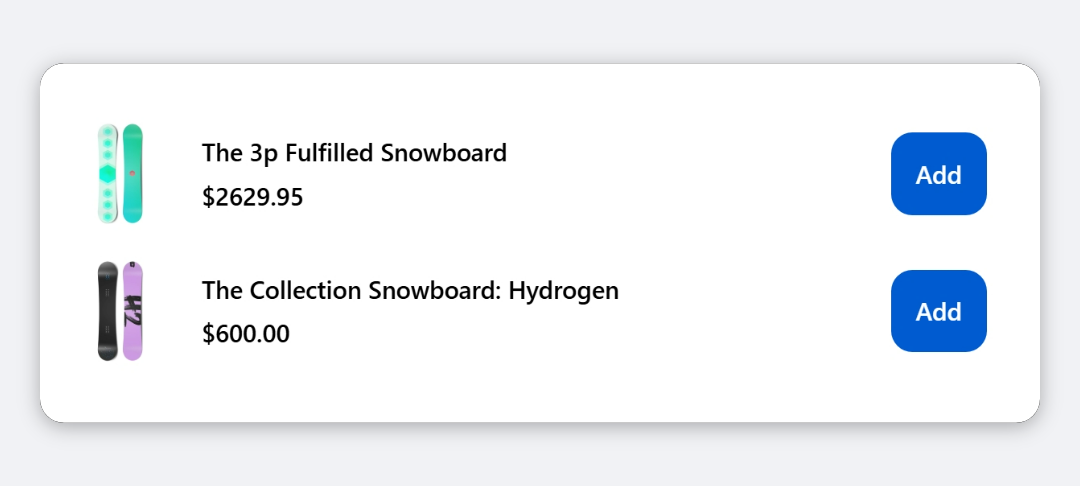
| Card Design Type | Compact Design: horizontal row with a small thumbnail. Detailed Design: bordered card with a larger button, the variant name and a savings badge. | Compact Design |
| No of Products | The most products shown. Products already in the cart are removed first. | 4 |
| Recommendation Type | Related Products or Complementary Products use Shopify’s recommendations for the first product in the cart. Custom Products shows the products you select, in that order. | None selected |
With Custom Products, the block shows nothing until you select at least one product. It doesn’t fall back to recommendations.
Subscription Display
Applies only to products with selling plans. Other products always show a plain add-to-cart button.
| Option | What it does |
|---|---|
| Auto | Shows a purchase type selector (one-time or subscribe) and, when there’s more than one plan, a delivery frequency selector. |
| Hide | Never shows subscription options. The product is added as a one-time purchase. This is the default. |
| Custom | Lets you set the options below. |
Custom settings:
| Setting | What it does | Default |
|---|---|---|
| Default Purchase Type | Which option is selected when the card loads: One-time purchase or Subscription. | One-time purchase |
| Display Style | Toggle (One-time / Subscribe) shows a purchase type selector, then a frequency selector. Dropdown (All frequencies) shows one selector with one-time and every plan. | Toggle |
| Show Savings Badge | Shows the subscription saving, for example in the subscribe label and the price badge. | On |
| Hide One-time Purchase | Removes the one-time option, so the product can only be added as a subscription. | Off |
| Auto-select Single Plan | When a product has exactly one selling plan, selects it and hides the selector. | Off |
When a subscription is selected, the card shows the subscription price with the one-time price struck through.
Translatable Content
| Setting | What it does | Default |
|---|---|---|
| Section Title | Heading shown between the divider lines above the cards. | ✨ Customers also loved |
Tick Customize Button Labels to edit these:
| Setting | What it does | Default |
|---|---|---|
| Add to Cart Button Text | Text on each card’s button. | Add to cart |
| Save Badge Text | Start of the discount badge in the Detailed Design, shown when a variant has a compare-at price. The percentage saved is added after it. | 🏷️ Save |
| Out of Stock Text | Text for unavailable products. The Upsell cards don’t currently display it. | Sold out |
| One-time Purchase Label | One-time option in the subscription selector. | One-time |
| Subscribe Label | Subscribe option when the plan has no saving. | Subscribe |
| Subscribe & Save Label | Subscribe option when the plan saves money. | Subscribe & Save {{percentage}}% |
| Delivery Frequency Label | Label on the frequency selector. | Delivery every |
The default Subscribe & Save label fills in the saving, for example “Subscribe & Save 10%”. If you write your own, {{percentage}} isn’t filled in, so write the label without it.
Translations
Click Manage translations under the Section Title, then search for a language or type a locale code such as pt-BR. Each language gets a card with the title and, below it, the button labels. Buyers see the translation for their checkout language, then the base language (pt-BR falls back to pt), then English.
Verify it worked
- Add a product that has recommendations to the cart and go to checkout. The title and up to No of Products cards appear.
- Click the button on one card. The product is added to the order summary and its card disappears.
- For a subscription product with Auto or Custom, pick a subscription and add it. The order summary shows the subscription.
- Negative check: add every recommended product to the cart. The block disappears completely.
Limitations
- Shopify Plus only for placement in the checkout steps. That’s a Shopify rule for all checkout apps.
- Related and Complementary recommendations use only the first product in the cart, and Shopify decides what’s returned. New stores and products with little sales history may get no recommendations.
- Products are added at their normal price. To discount them, create an automatic discount in Shopify.
- Each card adds a quantity of 1.
- Some text can’t be changed: the Purchase type selector label, and the “(Save N%)” text in the Dropdown style.
Troubleshooting
The block doesn’t show in checkout. The block renders nothing when there are no products to show: no recommendations for the first cart product, no products selected under Custom Products, or every product already in the cart. See upsell products not showing.
The Custom Products picker is locked. Custom Products is a premium option. Click Upgrade to Unlock, or use Related or Complementary Products on your current plan.
Subscription options don’t appear. Check that Subscription Display isn’t set to Hide, and that the product has selling plans from a subscription app. With Auto-select Single Plan on, a product with one plan shows no selector by design.
The Save badge doesn’t appear. The badge only shows in the Detailed Design, and only when the variant has a compare-at price higher than its price, or a subscription saving is selected.
Want to see this block in a live checkout first? See examples and use cases →
Frequently asked
Which upsell block should I use? +
Use Upsell for a simple stacked list of cards with subscription support. Use Featured Upsell to push one product, Promo Banner Upsell for a campaign image above a few products, and Quick Add Upsell for a compact, paged list of add-ons.
Where do Related and Complementary recommendations come from? +
From Shopify's product recommendations, based on the first product in the buyer's cart. Complementary products are the ones you set up in Shopify's Search & Discovery app.
Can buyers subscribe to an upsell product? +
Yes, if the product has selling plans from a subscription app and Subscription Display is set to Auto or Custom. The default is Hide.
Can I tell which order lines came from the upsell? +
Yes. Every product added from the block carries a hidden line item property, _ninja_upsell_id, set to the product's ID.