How to set up the Date Picker block
In short
The Date Picker block adds a calendar to checkout and saves the date the buyer picks to the order in YYYY-MM-DD format. Add a Date Picker block, add Disabled Date rules for days you can't deliver, and set Where to store the value to an attribute name such as delivery_date. The date is optional: the block doesn't stop checkout if no date is picked.
Category
Custom Fields
Plan
Advanced & Deluxe
Where it shows
Shopify checkout
Saves to order
Attribute or metafield
✓ Applies to
- Advanced and Deluxe plans
- Shopify Plus checkout
- Any checkout position: body, after the header, or around the delivery address
✕ Doesn't apply to
- Choosing a time of day. Use a Dropdown for time slots
- Changing Shopify shipping rates based on the date
What the Date Picker block does
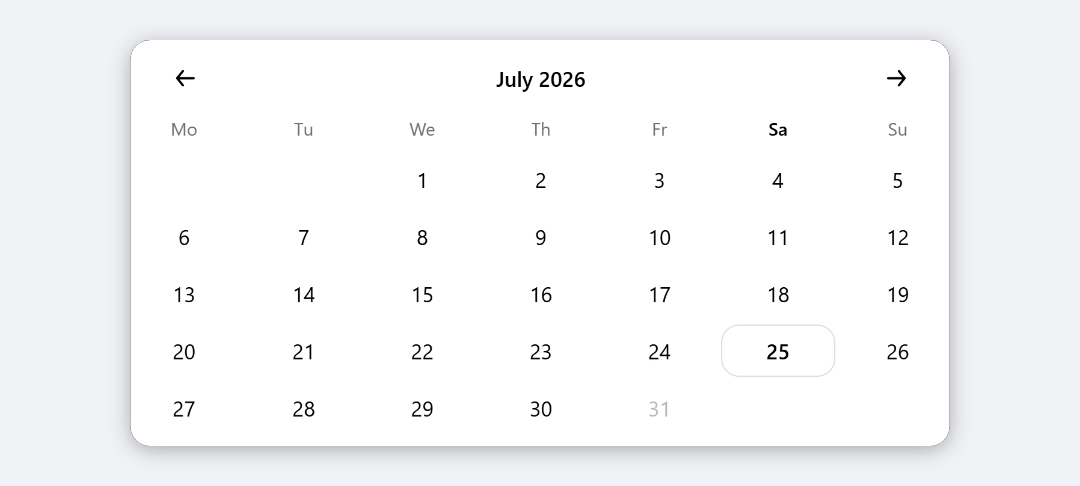
The block shows a calendar in checkout. Dates you’ve disabled can’t be clicked. When the buyer picks a date, Checkout Ninja saves it to the cart as an attribute or cart metafield, in YYYY-MM-DD format, and the date carries through to the order.
When to use it
- Let buyers choose a delivery or collection date, and disable days you don’t deliver.
- Book a date for a service, such as an installation or an event.
- Enforce a lead time, such as no same-day or next-day orders.
Before you start
- Decide the attribute name for the date, for example
delivery_date. The Date Picker doesn’t fall back to a default name, so set one. - List the dates you can’t serve: weekdays, holidays, closures and lead time.
Set it up
- In Checkout Ninja, go to Blocks and click Create New Block. Then click Start Fresh, or open an existing block you want to add it to.
- (Recommended) Click Add block and choose Heading to title the calendar, for example Choose your delivery date.
- Click Add block and choose Date Picker.
- Enter a Label. It helps you tell blocks apart in the editor.
- Under Disabled Date rules, add a rule and pick its Type, for example Day of the week → Sunday. Add one rule per day or date. See every rule type.
- Under Where to store the value, choose Attribute and enter Name of the attribute, for example
delivery_date. Or choose Metafield and enter a Namespace and Key. - Click Done. Check that Status is Active, then click Save and copy the Block ID.
- Click Open Checkout Editor. Add the Custom Block app block where you want the calendar, paste the Block ID and save.
When a rule asks for a date, click the date button and choose a date, even if it already shows the one you want. The button shows today’s date before you choose, but nothing is saved until you click a date.
Settings reference
| Setting | What it does | Default |
|---|---|---|
| Label | Name for the date field. Not shown in checkout in the current version. | Empty |
Disabled Date rules
Each rule disables dates in the calendar. Rules add up: a date is disabled if any rule matches it.
| Type | What it disables |
|---|---|
| Day of the week | Every Monday, Tuesday, and so on. One day per rule. |
| Specific Date | One date. |
| Date Range | Every date from Start Date to End Date, including both. |
| Date Before | Every date up to and including the chosen date. |
| Date After | The chosen date and every date after it. |
| Dynamic (current day,next day, etc) | Current Day, Next Day, Previous Day, or All days before today (which also disables today). |
| Custom Liquid Expression | Dates returned by a Liquid expression, such as a same-day cut-off. Has a Friendly Name for your reference. |
Where to store the value
| Setting | What it does | Default |
|---|---|---|
| Attribute → Name of the attribute | Saves the date as a cart attribute. It appears on the order under Additional details. | None, set one |
| Metafield → Namespace and Key | Saves the date as a cart metafield, written as namespace.key. | None |
Verify it worked
- Open your checkout. The calendar shows, with your disabled dates greyed out.
- Check a boundary: for a Date Range, both the start and end dates are disabled.
- Pick an available date and place a test order.
- Open the order in Orders. With attribute storage, the date is under Additional details, for example
delivery_date: 2026-10-14. - Negative check: try to click a disabled date. Nothing is selected.
Limitations
- Shopify Plus only for placement in the checkout steps. That’s a Shopify rule for all checkout apps.
- The Label setting isn’t shown in checkout. Use a Heading block above the calendar.
- No Required setting. Buyers can complete checkout without picking a date.
- One date per order. Buyers can’t choose a range or several dates.
- Dynamic rules use the UTC date, so around midnight “today” can differ from your local date.
- The date isn’t linked to shipping rates or delivery methods.
Troubleshooting
The picked date isn’t on the order. Check Where to store the value has a name. The Date Picker has no fallback name, so a blank name means nothing is saved.
A rule doesn’t disable anything. Open the rule and click its date button to choose a date. A date rule that was never clicked has no date saved. For Custom Liquid Expression rules, see disabling dates for the output format checkout expects.
Today or tomorrow is disabled unexpectedly. Date Before and All days before today include the boundary date. Use Date Before with the day before the first date you want to allow.
Want to see this block in a live checkout first? See examples and use cases →
Frequently asked
In what format is the date saved? +
YYYY-MM-DD, for example 2026-10-14. It's saved to the attribute or metafield you set under Where to store the value.
Can I make the date required? +
No. The Date Picker has no Required setting and doesn't block checkout when no date is picked.
Why doesn't my Label show above the calendar? +
The current checkout version of the Date Picker doesn't display the Label setting. Add a Heading block above it in the same checkout block to title the calendar.
Can I stop buyers picking weekends or today? +
Yes. Add a Day of the week rule for Saturday and another for Sunday, and a Dynamic rule set to Current Day. See the guide to disabling dates for every rule type.